
How To Connect Your Android Phone To TV
Source: mhltech.org
Tech news by email, once a week
Unsubscribe any time. Privacy policy
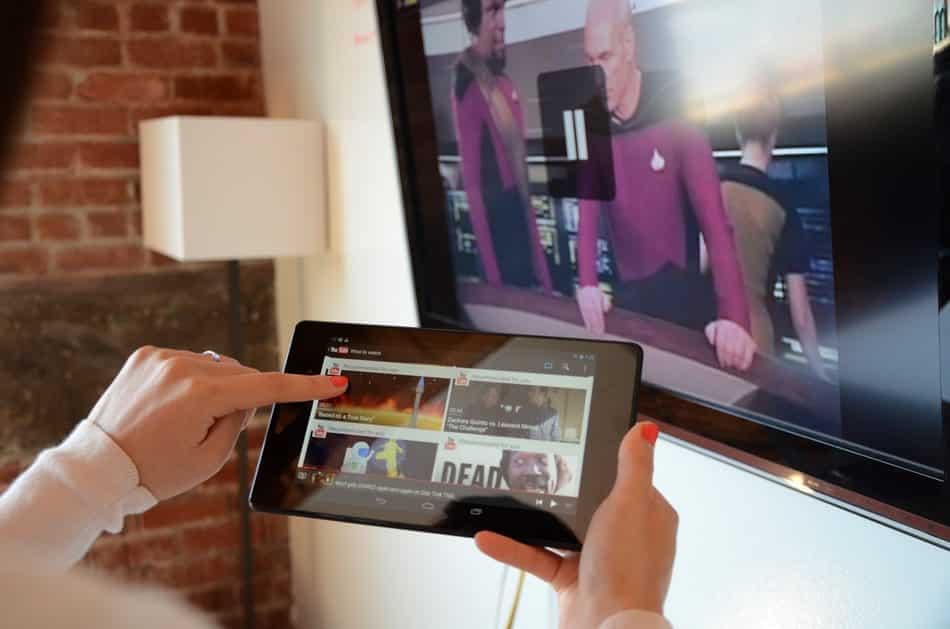
Our Android phones are the center of our personal media. From photos to videos, we have most of the recordings saved on our smartphone. Connecting the Android phone to a TV is desirable, especially when you want to relive your moments on a big screen.
However, there are not many options in the market that allow screen sharing or streaming on smart TVs via Android phone apps such as YouTube and much more. Options include SlimPort, MHL, Google Cast (the casting technology behind Chromecast), Miracast, and a USB-C-to-HDMI cable for newer phones.
In this article, we will tell you about how to connect your Android phone to TV through various methods.
Connect Android To TV: MHL/SlimPort
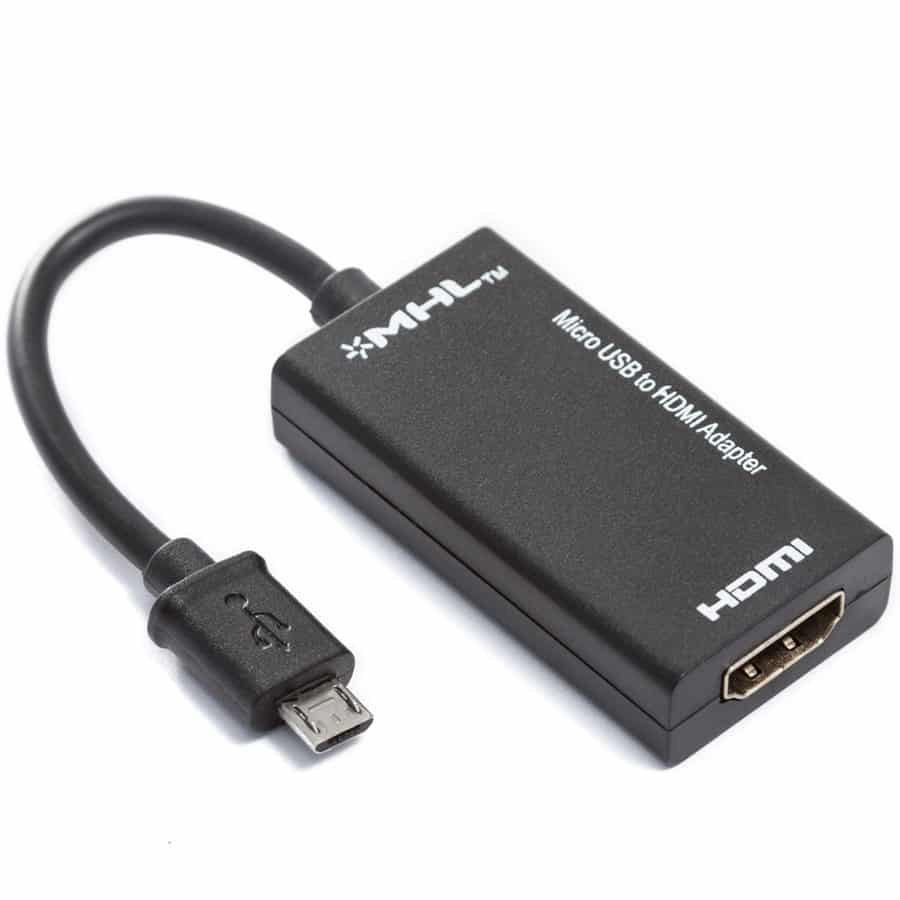
Most current TVs come with an HDMI port, but Android phones or tablets do not come with an HDMI port – This is where MHL/SlimPort come into the picture. These ports allow your Android devices to connect to a TV via microUSB port or USB Type-C port. These ports have two ends – HDMI and MicroUSB/USB Type-C, which allows them to connect a smartphone from its charging port to a TV’s HDMI port. In simpler words, these cables work as a bridge between your TV’s HDMI port and phone’s charging port.
MHL and SlimPort are older standards, and most recent phones no longer support them. Many newer phones with a USB-C port send video through DisplayPort Alt Mode instead, so a USB-C-to-HDMI cable or adapter works on those phones. Support depends on the model, so check your phone’s specifications first. For example, Google Pixel 8 and later phones support video output over USB-C.
SlimPort and MHL (Mobile High-Definition Link) serve the same purpose. They use phone’s microUSB port to connect to a TV. Both the cables support audio/video. They are also known as microUSB-to-HDMI converter or Type-C-to-HDMI-converter.
How to connect SlimPort/MHL to a TV
As we mentioned above, the microUSB end of the cable is to be connected to the smartphone while the other HDMI end has to be connected to an HDMI cable attached to your TV’s HDMI port. After connecting the two ends to the respective devices, simply open your TVs output setting and select the appropriate HDMI port (1,2,3) to which the cable is connected. Once you choose the right HDMI port on your TV, you will be able to see your phone’s screen mirrored on it.
Regarding power consumption, we think SlimPort is a better option than MHL port as it draws little power from the smartphone. MHL, on the other hand, consumes more power and makes the phone loose on the battery life, which may cause hindrance in your media streaming.
How To Choose The Right MHL Or SlimPort For Your Phone

Before you proceed to buy a SlimPort or MHL cable, support for both the cables varies for every smartphone. There are three different versions of the MHL cable available on the market, some of these come with a 5 pin arrangement while others come with an 11 pin arrangement. The point is to choose the right MHL cable for your Android smartphone. Many phone makers like Samsung already have theirs self-branded MHL cables. The default standard accepted by most of the phones is the five pin arrangement MHL cable.
However, devices like LG Nexus 5 and others do not support an MHL cable, but SlimPort. Therefore, we urge you to check out the compatible devices list for MHL here and SlimPort here.
Choosing The Wireless Method: Google Cast
If you are more of a wireless supporter, then Google Cast and Miracast could be the best alternatives for your phone. Google stopped selling the Chromecast in 2024 and replaced it with the Google TV Streamer, which also supports Google Cast. Many smart TVs have Google Cast built in, so you may not need extra hardware. Once connected to a TV’s HDMI port, a casting device wirelessly streams your phone on a TV screen along with support for many apps such as YouTube, Chrome Browser, and more.
Setting up GoogleCast
- Install the Google Home app on your phone from the Play Store. It replaced the old Google Cast app for setup.
- Plug your Chromecast or Google TV Streamer into your TV’s HDMI port and connect it to a power outlet.
- Next, turn on your television and select the HDMI input to which the device is connected.
- Now, open the Google Home app on your phone, tap “Add,” then tap “Device,” and follow the steps to find your device.
- When asked, confirm the code shown on your TV.
- Complete the process by choosing a name for the device and connecting it to your Wi-Fi network.
- Your device is now ready to use with your phone. Quickly head to YouTube, select any video, and tap on the cast icon next to it. The video will then play directly on your TV. Many other apps use the same cast icon. Netflix ended casting from phones to most TVs and streaming devices in late 2025, so it now works only on some older Chromecast models and TVs with Google Cast built in.
Of course, there are other alternatives to Google Cast like Miracast, on phones and TVs that support it. But, we think that Google Cast is easier to set up.
Conclusion
We hope these methods help you in connecting to your Android phone to the TV. If you come across any issue while connecting your phone to the TV, you can share your experience in the comment section below.
Sources:
– [Google announces the death of Chromecast alongside the brand-new Google TV Streamer](https://www.whathifi.com/news/google-announces-the-death-of-chromecast-alongside-the-brand-new-google-tv-streamer)
– [Set up your Chromecast device (3rd gen or older)](https://support.google.com/chromecast/answer/2998456?hl=en-IN)
– [Netflix removes casting support for smart TVs and streaming devices (heise)](https://heise.de/-11098608)
– [Netflix ends support for casting to most TVs and streaming devices (gHacks)](https://www.ghacks.net/2025/12/02/netflix-no-longer-lets-you-cast-from-phones-to-most-tvs/)
– [The Pixel 8 is finally getting support for display output over USB-C (Android Central)](https://www.androidcentral.com/apps-software/android-14-qpr3-beta-2-pixel-8-display-out)
Get the week's tech news by email
One email a week with Trendblog's stories on AI, hardware, apps and crypto.
We'll email you to confirm your address. Unsubscribe any time. Privacy policy