


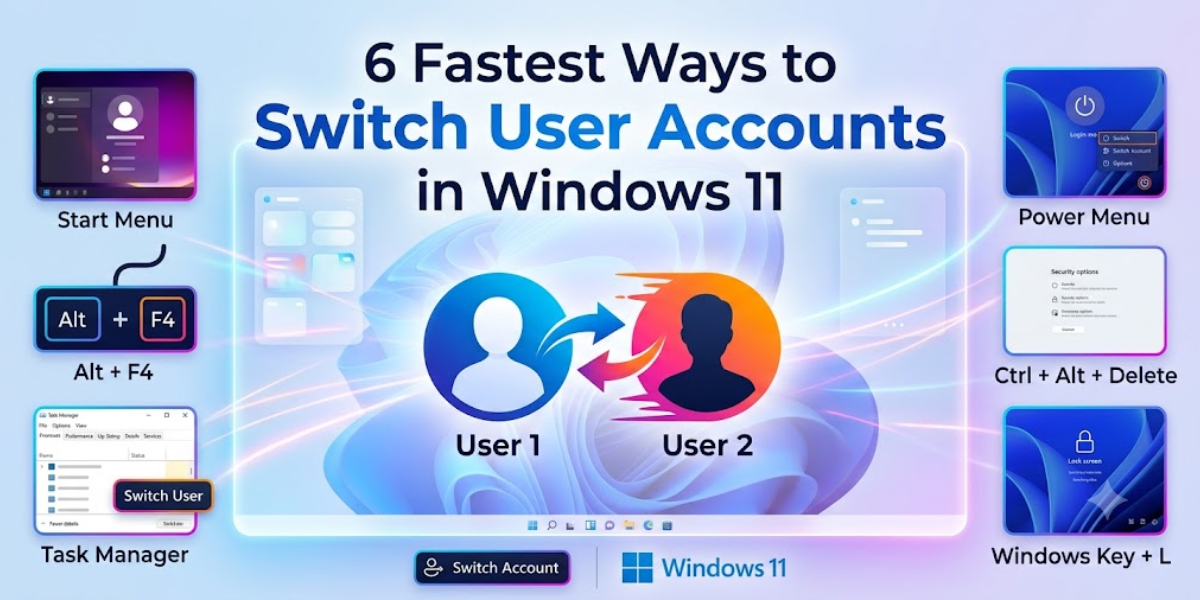
Switching between Windows 11 accounts doesn’t have to slow you down. Below are six methods ranked by speed—from the Ctrl+Alt+Delete shortcut to custom desktop shortcuts—so you can match the right technique to your workflow. The fastest option takes just two keystrokes and a single click.
Table of Contents
What you’ll need
- A Windows 11 PC with at least two user accounts configured
- Admin access for methods involving netplwiz or enabling Fast User Switching
- Basic familiarity with keyboard shortcuts (or a mouse for the Start menu and shortcut methods)
1. Use Ctrl+Alt+Delete (Fastest & Most Reliable)
Press Ctrl+Alt+Delete, then click “Switch user” on the blue security screen that appears. Select the account you want to log into.
This is the quickest and most reliable way to switch accounts. It keeps every app and window open on the current account—nothing closes in the background.
2. Lock with Win+L, Then Switch
Press Win+L to lock your PC immediately. You’ll land on the login screen, where you can click a different user account to switch.
It’s slightly more clicks than Ctrl+Alt+Delete but equally effective. If you already use Win+L regularly, this feels like a natural extension rather than a new shortcut to memorize.
3. Switch from the Start Menu
Open the Start menu and click your account icon in the lower-left corner. A pop-up menu appears with a “Switch account” option.
This is the best pick for mouse-driven users who’d rather avoid keyboard shortcuts entirely. It’s the most visual method on the list.
4. Use netplwiz to Manage & Switch Users
Press Win+R, type netplwiz, and hit Enter. The User Accounts dialog opens, letting you manage accounts and switch from the Users tab.
This method is geared toward admins who want a management-focused view. It’s not the fastest path to switching, but it’s handy when you’re already configuring accounts.
5. Enable Fast User Switching System-Wide
Admins can enable Fast User Switching across all accounts via Group Policy or the registry. This ensures the switch-user option is always available on every machine in the setup.
It’s a one-time configuration. Once enabled, every user on the system can switch accounts without logging out first.
6. Create a Desktop Shortcut for One-Click Switching
Right-click the desktop, choose New → Shortcut, and enter tsdiscon.exe as the target location. Name it something like “Switch User” and click Finish.
Double-clicking that shortcut jumps you straight to the account-switch screen. It’s the simplest option for users who want a persistent, one-click solution pinned to their desktop or taskbar.
Tips & Troubleshooting
If the switch-user option is missing on your login screen, Microsoft’s workaround is to enable the built-in Administrator account and create a new user account from there. Fast User Switching must also be enabled for the option to appear.
Every method listed above preserves your open apps—Windows keeps the first account running in the background. Choose Ctrl+Alt+Delete for raw speed, the desktop shortcut for convenience, or the Start menu if you never want to touch a shortcut key.
Conclusion
You now have six ways to switch accounts in Windows 11, ranging from a two-key shortcut to a one-click desktop icon. Ctrl+Alt+Delete remains the fastest for most people, while the tsdiscon.exe desktop shortcut is the easiest to access day after day. Pick the one that fits your daily flow and stop wasting time logging out.
Frequently Asked Questions
What is the absolute fastest way to switch between Windows 11 accounts?
Pressing Ctrl+Alt+Delete and selecting “Switch user” is the fastest and most reliable method. It takes two keystrokes and one click, and it keeps all your apps open in the background.
Why can’t I see the Switch User option on my login screen?
Microsoft’s recommended workaround is to enable the built-in Administrator account and create or reconfigure user accounts from there. Also verify that Fast User Switching is enabled system-wide through Group Policy if you’re an admin.
How do I switch users without closing all my open apps?
All six methods in this guide use Windows 11’s fast user switching feature, which keeps the current account’s apps running in the background. No need to close anything before switching.
Can I create a one-click shortcut to switch Windows user accounts?
Yes. Create a desktop shortcut with the target tsdiscon.exe, and double-clicking it takes you straight to the account-switch screen every time.
Which is faster: Ctrl+Alt+Delete or Win+L?
Ctrl+Alt+Delete is slightly faster because it opens the security screen directly, where “Switch user” is one click away. Win+L lands you on the login screen first, adding a small extra step—but both are quick. Choose whichever fits your muscle memory.
