


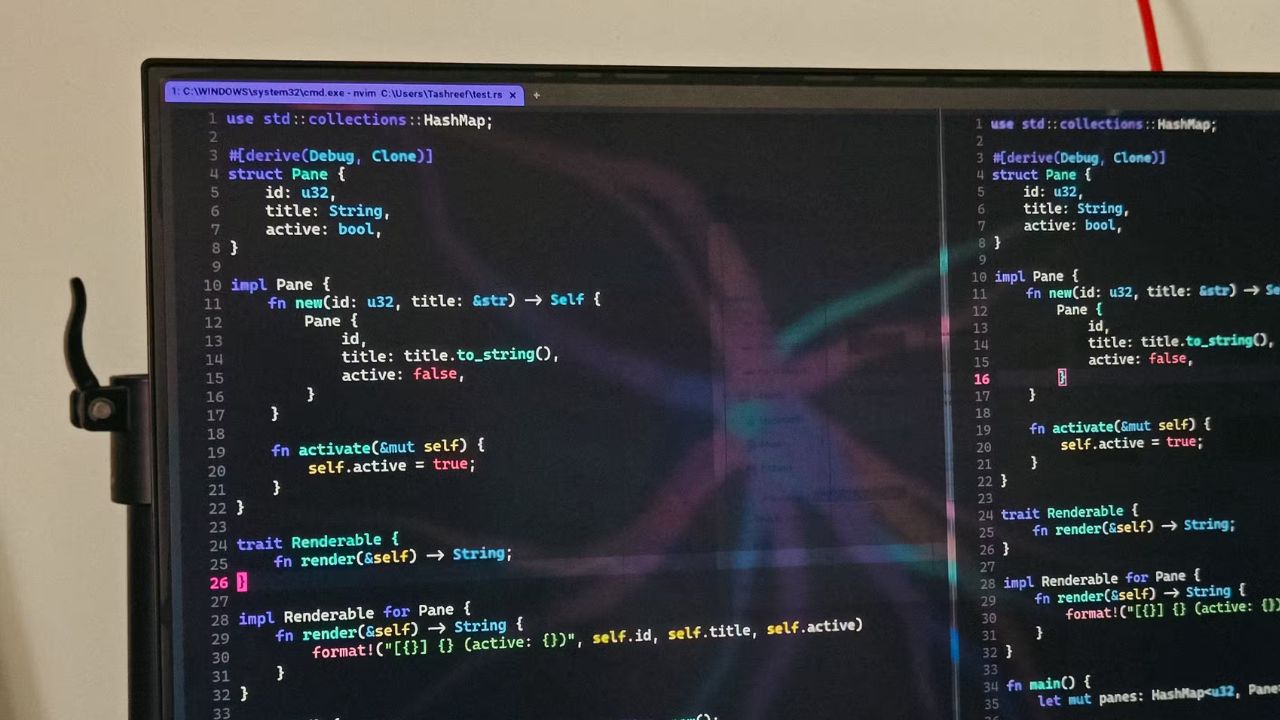
You can replace the default Windows Terminal with WezTerm for a cross-platform, highly configurable terminal experience. This method is suitable for users running Windows 10 and later, as well as Linux and macOS systems.
Table of Contents
Key Facts About Replacing Windows Terminal
Replacing the default Windows Terminal with a new terminal application like WezTerm is a straightforward process. The time required is minimal, estimated at 15-30 minutes, depending on your familiarity with terminal configuration. No specific software prerequisites are strictly necessary before beginning the installation, though having a text editor available will be helpful for configuration.
Before You Start
Before installing WezTerm, ensure you have administrative privileges on your Windows machine if you choose to install it for all users. While not strictly required, having a preferred text editor like VS Code or Notepad++ installed will greatly enhance the configuration process. It is also beneficial to have an understanding of basic terminal concepts if you plan to heavily customize WezTerm.
Install WezTerm
Download the latest release of WezTerm from its official GitHub repository. Navigate to the “Releases” section and download the installer appropriate for your operating system. For Windows, this will typically be a .exe or .msi file. Run the installer and follow the on-screen prompts. Choose whether to install for the current user or all users. The installation process creates a single, self-contained binary.
Configure WezTerm
Locate your user home directory. Inside this directory, create a new file named .wezterm.lua. This file will house all your custom configurations. Open this file in your chosen text editor. You can begin adding Lua-based configurations to customize appearance, keybindings, and behavior. For example, to set a specific color scheme, you would add lines like color_scheme = "Dracula".
Set WezTerm as Default (Optional)
To make WezTerm your primary terminal, you can associate it with specific file types or protocols, though a direct “default” setting like for web browsers does not exist for terminal applications. You can achieve this by modifying your system’s environment variables or by configuring shell profiles to launch WezTerm. Alternatively, you can manually launch WezTerm for specific tasks and use its built-in SSH domain feature to connect to remote servers.
Explore WezTerm Features
Explore WezTerm‘s advanced features. Its Lua configuration allows for complex logic, such as setting different font sizes based on the host machine. It includes a built-in multiplexer for managing panes and tabs without needing external tools like tmux. WezTerm also supports iTerm2 image protocols, Kitty graphics, and Sixel for displaying images directly within the terminal. You can customize key and mouse bindings extensively to match your workflow.
If It Doesn’t Work
Check configuration syntax: Ensure your .wezterm.lua file is valid Lua code. Typos or incorrect syntax will prevent settings from loading. Verify terminfo settings: If remote tools like nano are not working after SSHing, set TERM = "xterm-256color" in your .wezterm.lua. Restart WezTerm: After making configuration changes, restart WezTerm for them to take effect. Some systems may require a full system reboot.
Alternatives to WezTerm
If WezTerm‘s Lua configuration is too complex or you prefer a simpler graphical interface, Windows Terminal remains a robust alternative. It offers tabs, split panes, GPU rendering, and a user-friendly settings UI for customization. For users seeking a terminal with extensive history and community support, ConEmu is another option, though it is less actively developed than WezTerm or Windows Terminal.
Frequently Asked Questions
Can I use WezTerm on macOS and Linux?
Yes, WezTerm is designed to be cross-platform and runs on Windows 10 and later, macOS, and various Linux distributions.
Does WezTerm have a graphical settings UI?
No, WezTerm is configured entirely through a .wezterm.lua text file, offering deep customization via Lua scripting.
How does WezTerm handle images?
WezTerm supports image protocols like iTerm2, Kitty graphics, and Sixel, allowing for the display of actual images within the terminal.
Is WezTerm faster than Windows Terminal?
WezTerm uses a GPU-accelerated renderer, making it fast. However, terminals like Alacritty and foot may be faster and lighter, while Windows Terminal also features GPU rendering.
Can I use my existing tmux configurations with WezTerm?
WezTerm has a built-in multiplexer, meaning you do not need to use or reconfigure tmux. Its pane and tab management are integrated directly.
