

Linux on Microsoft Surface Pro 6: 80% of Hardware Works, Cooler & Faster

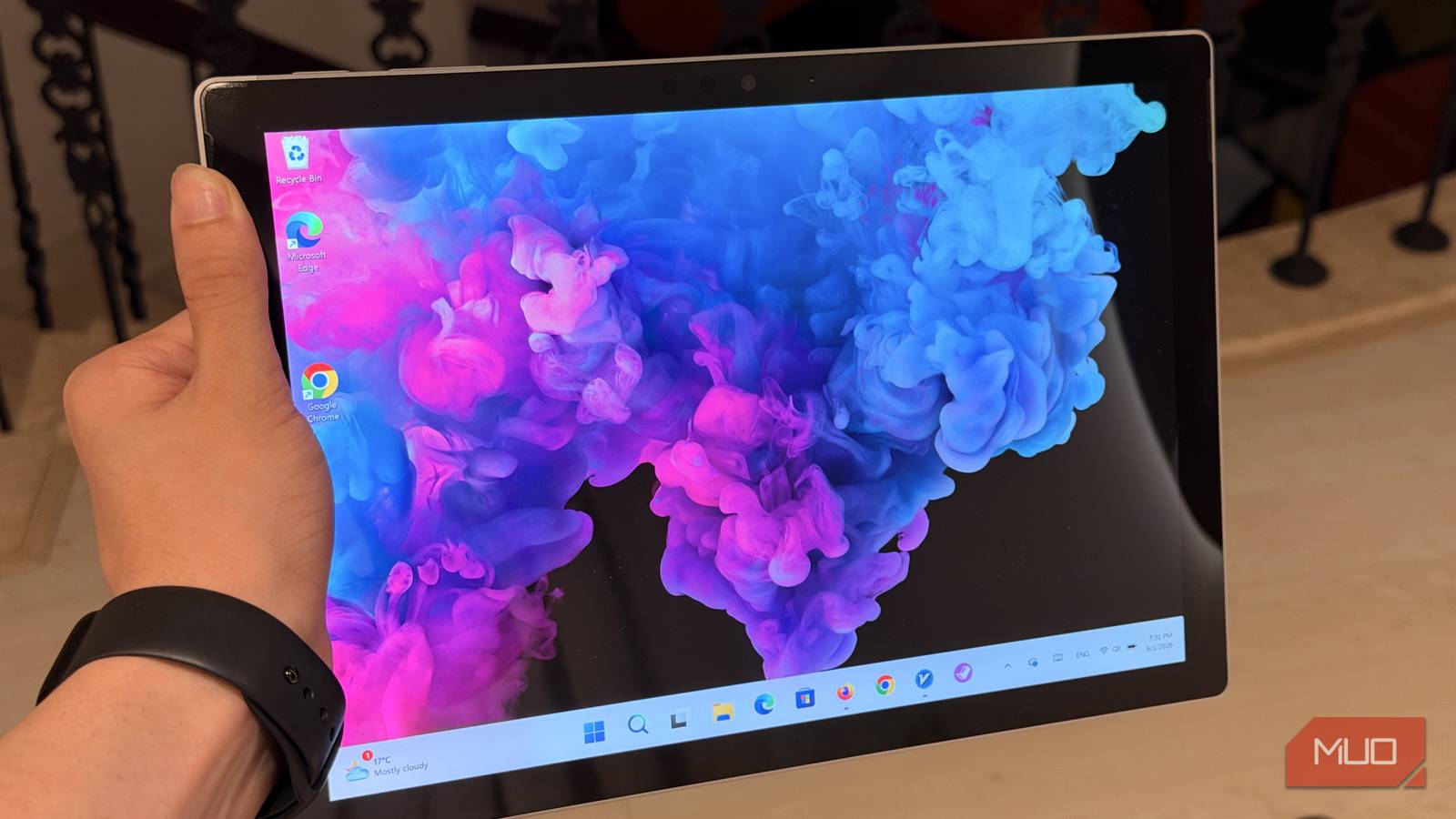
You can install Linux on a Microsoft Surface Pro 6 to improve its performance. This guide will walk you through the process, focusing on the Ultramarine Linux distribution for a smoother experience.
Table of Contents
Key Facts About Linux on Surface Pro 6
- Linux-surface project provides a custom kernel and drivers for Surface devices.
- Ultramarine Linux is a Fedora-based distribution with the linux-surface project pre-integrated.
- Surface Pen support is confirmed, which is crucial for tablet use.
- Windows Hello IR camera does not work with Linux.
- The Surface Pro 6 runs cooler and faster with Linux than with Windows.
Putting Linux on a Surface Pro 6
Installing Linux on a Microsoft Surface Pro 6 can revive older devices that struggle with Windows. The primary issues with the Surface Pro 6 included poor battery life, overheating, and general sluggishness. These problems indicated that Windows was not performing optimally on the hardware.
The solution involves utilizing the linux-surface project, which offers a tailored kernel and drivers to ensure Surface hardware functions correctly. This project supports several mainstream Linux distributions, including Ubuntu, Debian, Fedora, and Arch-based systems. With these instructions, you can install a chosen Linux distribution and then set up the necessary components for Surface compatibility.
For an even more streamlined process, distributions like Ultramarine Linux are recommended. Ultramarine Linux is designed to be user-friendly, essentially offering a Fedora experience with added features and pre-installed drivers specifically for Microsoft hardware. This approach simplifies the installation and ensures essential components are ready to go from the start.
Overcoming Installation Hurdles
The initial attempt to boot from a USB drive might result in an error, such as a missing kernel message. This issue is often caused by Secure Boot, a security feature in the UEFI settings.
To resolve this, you must access the Surface Pro 6’s UEFI settings by holding the volume-up button while pressing the power button. Once in the UEFI settings, disable Secure Boot.
After disabling Secure Boot and attempting to boot again, you might encounter a blue screen requiring a BitLocker recovery key. This happens if Windows device encryption was enabled. You will need to retrieve the 48-digit recovery key from your Microsoft account. After entering the key, you can access Windows again.
Within Windows, you should then enter PowerShell and suspend the encryption protection. This is a temporary measure that allows the system to boot from the SSD without the encryption lock, enabling Ultramarine to install successfully. Fully decrypting the drive is not necessary if you plan to replace Windows.
Linux on Surface Pro 6: What Works and What Doesn’t
Many core hardware components function well with Linux on the Surface Pro 6. This includes the speakers, touchscreen, microphone, and the device’s two standard cameras. Critically, the Surface Pen connects and operates without any special configuration, which is vital for users who rely on it for writing and drawing.
However, there are some limitations. The Windows Hello IR camera is confirmed to not work with Linux, and users may need to adjust settings for the regular cameras, as their default image quality can be quite dark.
Despite these minor issues, the overall functionality of essential peripherals is a significant improvement over the struggles experienced with Windows.
The performance difference is substantial. The Surface Pro 6 runs considerably cooler and quieter, with the fan rarely activating. This is a marked contrast to its behavior under Windows, where fans would often spin up shortly after boot. The machine becomes noticeably more pleasant and responsive to use with Linux.
The Linux-surface Project and Ultramarine Linux
The linux-surface project exists specifically to make Linux compatible with Microsoft Surface hardware. It provides a customized kernel and necessary drivers that enable Surface-specific components to function correctly under Linux. While it can be used with various distributions, it simplifies the process by offering straightforward installation guidance for popular options.
For a more integrated experience, Ultramarine Linux is an excellent choice. It is based on Fedora and includes the linux-surface project’s enhancements by default. Ultramarine also bundles additional drivers and codecs essential for Microsoft devices. This pre-configuration means less manual setup is required after installation.
Ultramarine Linux offers several desktop environments, including KDE Plasma, Xfce, Budgie, and GNOME. The KDE Plasma environment is often chosen for its features and customizability. You can download the Ultramarine Linux image directly from its website. The project aims to provide a polished Fedora-like experience with added value for Surface users.
Improving the Tablet Experience
While Linux offers significant performance gains, using it as a tablet interface presents a different challenge. Windows 11 includes features like large button spacing and adaptive UIs that enhance the touch experience, especially when the keyboard is detached. These elements make Windows feel more intuitive for tablet-style use.
KDE Plasma, a popular Linux desktop environment, does offer an on-screen keyboard and functional touch navigation. However, it doesn’t dynamically adapt its interface to a tablet mode as seamlessly as Windows does. The experience can feel more like using a desktop interface with touch controls rather than a truly touch-native environment.
This difference in tablet interface design is perhaps the biggest compromise when switching to Linux. While the overall performance and hardware compatibility are strong, users accustomed to Windows’ touch-first adaptations might find the transition requires some adjustment. Despite this, the significant improvements in speed and thermal performance make Linux a compelling option.
Conclusion: When to Install Linux
Installing Linux on a Surface Pro 6 is a viable option, especially for older models experiencing performance issues. The process, particularly with distributions like Ultramarine Linux, has become more straightforward. The linux-surface project ensures that critical hardware like the Surface Pen and touchscreen work effectively.
Performance improvements are substantial, with the device running cooler and faster. This makes it a great way to extend the life of a sluggish Surface Pro 6.
You can expect around 80% of the hardware to function well, with the primary trade-offs being the Windows Hello camera and a less polished tablet UI compared to Windows.
While Windows offers better hardware integration for specific features like Windows Hello and a more refined tablet experience, these benefits may not outweigh the performance drawbacks for many users. If your Surface Pro 6 is struggling, consider Linux as a powerful alternative, even if it means a slight adjustment to your user experience.
Frequently Asked Questions
Does the Surface Pen work with Linux on a Surface Pro 6?
Yes, the Surface Pen connects and works with Linux on the Surface Pro 6 without requiring special configuration. This is a crucial feature for users who primarily use their device as a tablet for note-taking or drawing.
What hardware features do not work with Linux on a Surface Pro 6?
The Windows Hello IR camera does not function when running Linux on the Surface Pro 6. Additionally, the standard cameras may require some configuration to achieve optimal image quality, as they tend to be very dark by default.
Is installing Linux on a Surface Pro 6 difficult?
The installation process is generally straightforward, especially with distributions like Ultramarine Linux that come with the necessary drivers pre-installed. The main hurdles usually involve disabling Secure Boot in the UEFI settings and potentially dealing with BitLocker recovery keys if Windows encryption was enabled. This is estimated to take about 6 hours if you encounter issues.
What are the benefits of running Linux on a Surface Pro 6?
Running Linux significantly improves the performance of the Surface Pro 6. The device runs cooler, becomes much faster, and the fan noise is drastically reduced. This can breathe new life into an older Surface Pro that has become sluggish and overheats under Windows. Some users have found it runs 10 times better.
Which Linux distribution is recommended for the Surface Pro 6?
Ultramarine Linux is highly recommended. It’s a Fedora-based distribution that comes with the linux-surface project’s kernel and drivers pre-integrated, along with other useful extras. This simplifies the setup process considerably compared to manually configuring a standard Linux distribution.
