


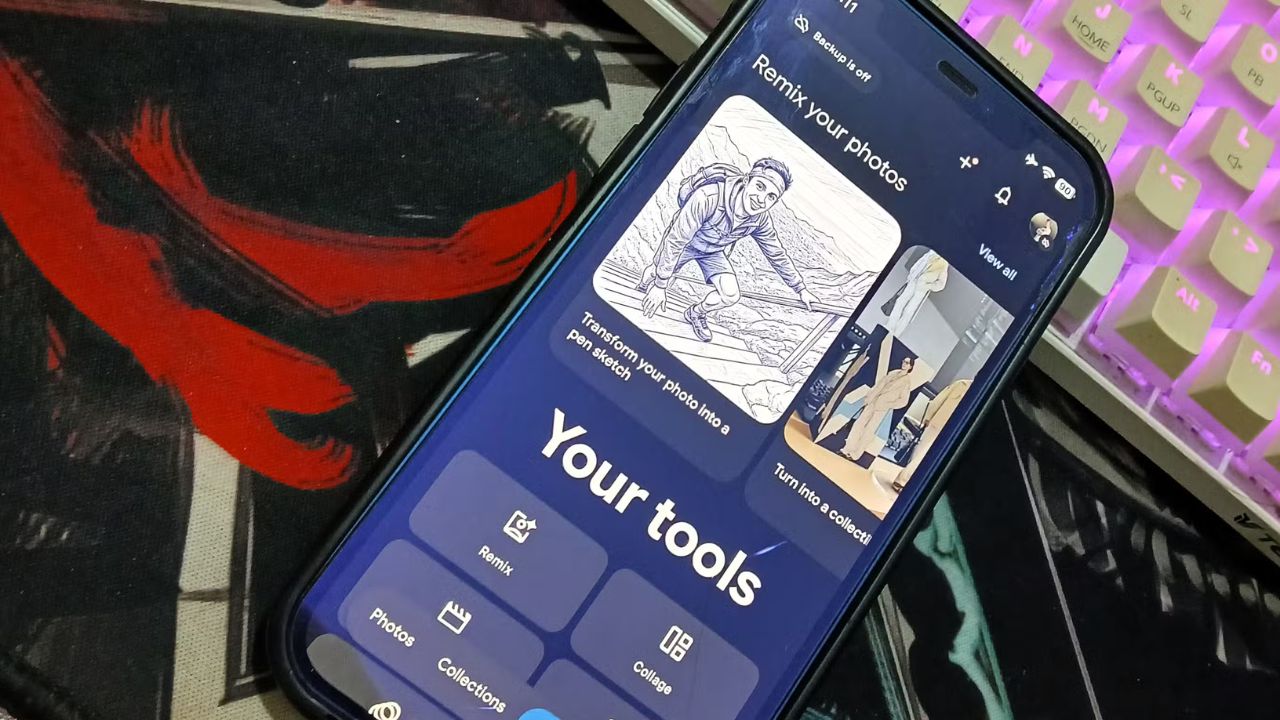
You can use Gemini’s “Ask Photos” feature within Google Photos to search your image library using natural language, extracting text from photos and organizing your memories more effectively. This feature is available on Android devices with the latest version of Google Photos. If you are using an iPhone, you will have to wait for the feature to be rolled out to iOS.
Table of Contents
Key Facts
- OS/App Version: Android devices with the latest version of Google Photos. An iOS version is not yet available.
- Time Needed: Minutes to set up, depending on the size of your photo library. Searching and extracting information is near-instantaneous once set up.
- Prerequisites: Your photos must be backed up to Google Photos. You must have Gemini enabled on your Android device.
Before You Start
Ensure that you have the latest version of Google Photos installed on your Android device. You also need to have Gemini enabled for your Google account. Crucially, any photos you wish to search must be backed up to your Google Photos library. Photos not backed up will not be accessible to Gemini’s search functions.
Enable and Use Ask Photos
Enable the “Ask Photos” feature by opening the Google Photos app and tapping the Gemini icon. Follow the on-screen prompts to grant necessary permissions. Once enabled, you can ask questions like “Show me photos of my dog at the beach” or “Extract the text from my gym membership card.”
Gemini will process your request, analyze the images in your library, and provide relevant photos or extract the requested text. For example, if you ask for text from a photo, it will transcribe the text for you. You can specify details like dates, locations, or people previously named in your gallery to further refine your searches.
Step 2: Name People for Enhanced Searches
Name individuals in your Google Photos library to significantly improve search accuracy. Google Photos automatically recognizes faces, and you can assign names to these recognized faces. After naming someone, you can ask Gemini to find photos of that specific person from a particular time frame or event.
For instance, you can ask, “Show me all photos of [Person’s Name] from our trip to the mountains in 2023.” This allows for precise retrieval of memories involving specific people, making it easier to chronicle events or relationships over time.
Step 3: Extract Text from Your Photos
Extract text directly from your images by asking Gemini to find and transcribe it. This is incredibly useful for anything from handwritten notes to printed documents. For example, you can ask, “What is the license plate number on my old car from that photo in 2023?” or “Show me my phone’s IMEI number.”
Gemini will analyze the image, identify any text, and present it to you directly, eliminating the need for manual transcription. This feature is particularly handy for recovering important information previously stored only in an image.
Step 4: Organize Memories into Custom Galleries
Create custom galleries to group related photos for easier future access. This goes beyond basic search and allows for thematic organization. For example, you could create a gallery titled “Summer Holidays 2025” or “20th Birthday Highlights.” To do this, select the photos you want to include, then look for an option to add them to a new or existing album. This manual curation, combined with Gemini’s AI capabilities, ensures your most important memories are readily available and thoughtfully organized for revisiting.
If It Doesn’t Work
Gemini is Not Responding
If Gemini is not responding in Google Photos, ensure that you have the latest version of the app installed and that Gemini is enabled for your Google account. Check your internet connection, as Gemini features require an active connection to Google’s servers to process requests.
Searches Are Inaccurate
Inaccurate search results can occur with low-resolution photos or poor handwriting. If Gemini struggles to find the right photo or extract text correctly, try rephrasing your query with more specific details. You can also follow up with additional prompts to guide Gemini. For instance, if it misses a detail, tell it more about the specific element you are looking for.
Text Extraction Fails
If text extraction is failing, the photo’s quality might be the issue. Ensure the text within the photo is clear and legible. Gemini may have difficulty with very old scanned documents, stylized fonts, or text that is heavily obscured or partially damaged. For best results, use photos where the text is sharp and well-lit.
Photos Not Backed Up
If the feature states that photos are not backed up, they will not be searchable. Gemini’s “Ask Photos” functionality only works on images that have been uploaded and saved to your Google Photos cloud library. Verify that the photos you are trying to search have successfully completed their backup process.
Alternatives
If Gemini’s “Ask Photos” feature is not available on your device or if you are an iOS user awaiting its rollout, you can still utilize Google Photos’ built-in search capabilities. These rely on object recognition, location data, and facial recognition, allowing you to search for terms like “beach,” “sunset,” or specific people if their faces have been tagged. Additionally, you can manually create albums and organize your photos by date or event. For text extraction specifically, third-party OCR (Optical Character Recognition) apps can be used to scan and transcribe text from images.
Frequently Asked Questions
Can Gemini access my photos if they are not backed up?
No, Gemini’s “Ask Photos” feature can only access and process images that have been successfully backed up to your Google Photos library.
Does Google store my photos to train Gemini?
Google states that backed-up photos are protected by security and are not sold for ad targeting. Your data is used to train the Photos model, but you can opt-out of this data usage in your settings.
What if I don’t want Gemini to use my photos?
You can manage your Gemini activity and data usage within your Google account settings. Look for options related to data privacy and Gemini’s interaction with your Google Photos library.
Is the text extraction feature accurate for all text types?
The accuracy depends on the quality of the photo and the clarity of the text. It may struggle with low-resolution images, poor handwriting, or complex fonts.
