
How to Manage Newsletters Without Cluttering Your Inbox, Plus the 12 Best Tech Newsletters in 2026
Source: tldr.tech
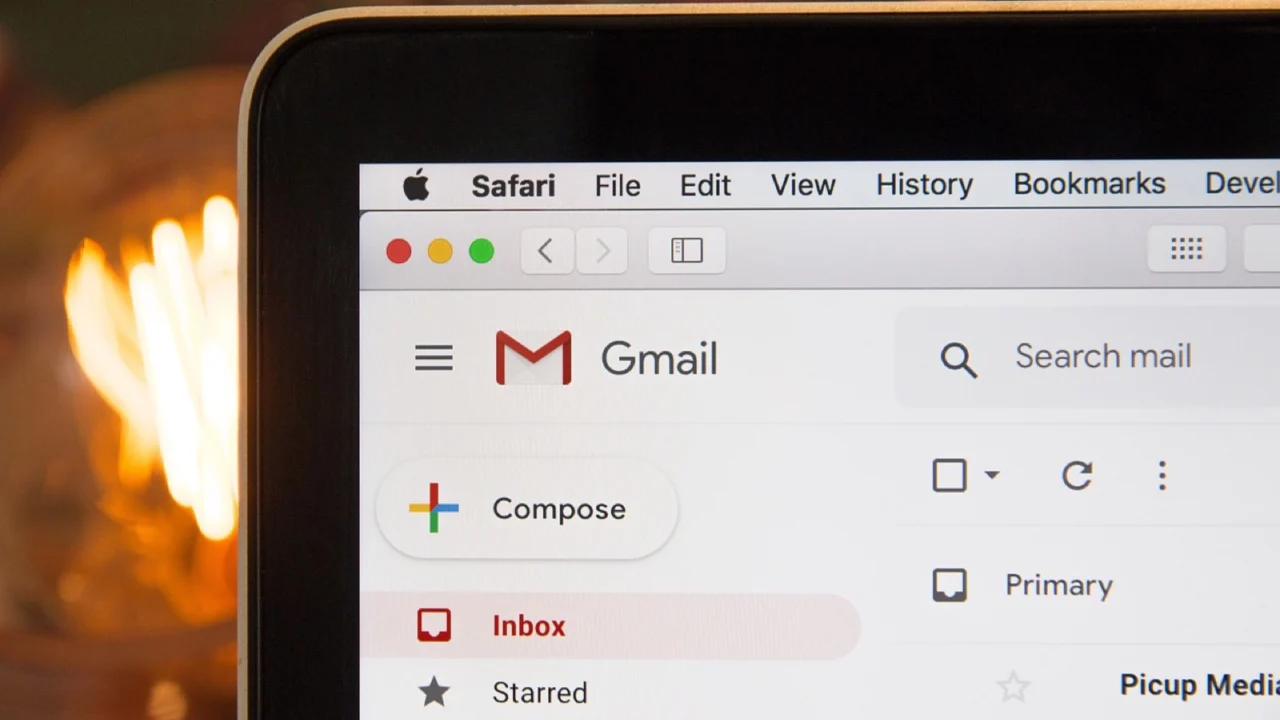
Image: diedryreyes3456 on Pixabay
A good newsletter does the reading for you. Sign up for ten of them with your main address, though, and your inbox fills with mail you meant to read later, and the email that matters ends up on page three. A few minutes of setup avoids that. Below: how to set up a reading inbox, which tech newsletters are worth the space, and how to leave the ones that aren’t.
Step 1: Give your newsletters their own address
The cleanest fix is a separate Gmail account used only for subscriptions. Your main inbox stays for people, bills and work, and the reading pile lives somewhere you open when you have time. If a newsletter ever leaks your address to spammers, the damage stays in the second account.
On a computer:
- Open a private browser window, or sign out of Google first.
- Go to the Google Account sign-in page and click Create account, then For my personal use.
- Enter a name, your birthday and gender.
- Pick one of the suggested Gmail addresses or choose Create your own Gmail address. Something like [email protected] works.
- Set a password, then click Next.
- Add a phone number if you want to, accept the terms, and you’re done.
On a phone, open the Gmail app, tap your profile picture in the top right corner, then Add another account and Google, and follow the same steps. The app can hold up to five accounts, so switching between your main inbox and your reading inbox takes one tap.
About that phone number: Google lists it as optional, but it may still ask some people to verify one. In May 2026 Google also confirmed it was testing 5 GB of free storage instead of 15 GB for new accounts in some regions unless a phone number is added. A newsletter-only account will rarely come close to 5 GB.
Don’t want a second account? Use a plus address
Gmail ignores anything you add after a plus sign. If your address is [email protected], mail sent to [email protected] still reaches you. Use the plus version when you subscribe, and a filter can then sort those emails away from your inbox automatically (see step 2). It also shows you which service shared your address if spam starts arriving at it.
Step 2: Keep newsletters out of the inbox with a filter
Whether you use a second account or a plus address, a filter can send newsletters straight to a label of their own, so they never land in the inbox. Filters are set up in Gmail on a computer:
- In the left-hand menu, next to Labels, click Create new label and call it something like Reading.
- In the search box at the top, click Show search options.
- In Has the words, type unsubscribe. Almost every newsletter contains that word. To catch only your plus address instead, put [email protected] in the To field.
- Click Create filter.
- Tick Skip the Inbox (Archive it) and Apply the label, choose your Reading label, and click Create filter again.
Newsletters now collect under Reading in the left-hand menu, on your computer and in the Gmail app. To change or delete the filter later, go to Settings, then See all settings, then Filters and Blocked Addresses.
If the “unsubscribe” filter catches something you wanted in your inbox, such as receipts from a shop that also sends offers, open that email, click the three dots next to Reply and choose Filter messages like these to make an exception for that sender.
Moving newsletters from an old address
Already subscribed to a dozen newsletters with your main address? You can forward them to the new account instead of signing up again. In the old account, go to Settings, See all settings, Forwarding and POP/IMAP, click Add a forwarding address, and enter the new address. Gmail sends a confirmation link to the new account; click it.
To forward only newsletters, leave full forwarding switched off and create a filter instead (the same steps as above) with the action Forward it to your new address. Forwarding only applies to mail that arrives from then on, and spam is never forwarded.
The 12 best tech newsletters in 2026
We checked every newsletter on this list in November 2026 to make sure it is still publishing. Subscriber figures are the publishers’ own, where they share them.
1. TLDR
The default pick for a daily tech briefing. TLDR sends short summaries of the day’s tech, startup and programming stories, readable in about five minutes, every day and for free. The publisher says it has more than 8 million readers. tldr.tech
2. The Rundown AI
If you only want one AI newsletter, start here. The Rundown covers the day’s AI news and adds practical guides on using the tools, in a daily email the publisher says reaches more than 3.5 million readers. The newsletter is free. therundown.ai
3. Stratechery
Ben Thompson analyzes the business and strategy behind big tech moves. The weekly Articles are free. Stratechery Plus, at $15 a month or $150 a year, adds the Daily Update, interviews and podcasts. stratechery.com
4. Import AI
Written weekly by Jack Clark, a co-founder of Anthropic, Import AI explains what new AI research papers mean, beyond the headlines. Issues are free; an optional paid tier ($10 a month or $100 a year) adds comments and early access to some essays. importai.substack.com
5. Platformer
Casey Newton reports on big tech platforms and the policy fights around them. At least one free edition goes out every week, and paying subscribers get extra updates. platformer.news
6. Benedict’s Newsletter
Benedict Evans picks out what mattered in tech that week and says why. The free edition carries the core news on Tuesdays; Premium ($150 a year) arrives on Sunday with an extra column and the archive. ben-evans.com/newsletter
7. Hacker Newsletter
Hacker News without the endless scrolling: every Friday, Kale Davis sends a hand-picked selection of the week’s best links and discussions. It is free, and its latest issue went to more than 68,000 subscribers. hackernewsletter.com
8. TLDR AI
The AI edition of TLDR arrives every weekday with research, launches and tools in the same short format. Free, with more than 1.2 million subscribers. A good second AI newsletter next to The Rundown. tldr.tech/ai
9. Exponential View
Azeem Azhar writes about AI, technology and what they do to the economy, several times a week. The publisher counts more than 168,000 subscribers. A paid tier costs $19 a month or $120 a year. exponentialview.co
10. Trendblog Weekly
Full disclosure: this one is ours. Once a week we send one short email with the AI, hardware, apps and crypto stories worth reading from Trendblog, and new tools from our toolkit show up there first. It is free, and the sign-up box is at the bottom of this article. trendblog.net
11. Ben’s Bites
Ben Tossell writes about AI for people who build things with it, technical or not. It usually arrives once or twice a week. bensbites.com
12. Garbage Day
For the strange side of the internet. Ryan Broderick sends about three issues a week on internet culture, memes and the platforms behind them. The free tier is generous; Premium costs $6.66 a month or $69 a year and adds two paywalled issues a week. garbageday.email
Also worth knowing
- The Verge Daily is free and covers the day’s gadget and tech news. Its other newsletters, including David Pierce’s Installer, now need a Verge subscription ($7 a month or $60 a year). theverge.com/newsletters
- Bankless sends a free daily crypto brief focused on Ethereum; Premium costs $200 a year. bankless.com
- The Defiant covers decentralized finance, and The Defiant Daily is free. thedefiant.io/newsletter
Step 3: How to unsubscribe when a newsletter stops earning its place
Unsubscribing is easier than it used to be. Since February 2024, Gmail and Yahoo require anyone sending large volumes of marketing email to offer one-click unsubscribing and to act on it within two days.
In Gmail
- From the email: open it and click Unsubscribe next to the sender’s name at the top, then confirm. It can take a few days to take effect.
- Several at once: Gmail’s Manage subscriptions page lists every sender that emails you regularly, how often they write, and an Unsubscribe button for each. On a computer it’s under More in the left-hand menu; in the Android and iPhone apps, open the menu in the top left. Google is still rolling it out, so not every account has it yet.
- If emails keep coming: open one, click the three dots next to Reply and choose Block. Future emails from that sender go to Spam. For anything that looks like a scam, use Report spam instead of clicking an unsubscribe link inside the email.
In Outlook and Apple Mail
- Outlook.com: Settings, then Mail, then Subscriptions shows your newsletters with an Unsubscribe button next to each.
- Apple Mail: emails from mailing lists show a banner under the header with an Unsubscribe link. Click it and confirm.
Set up the reading account once, add the filter, and newsletters stop competing with your real email. Then subscribe to three or four from the list above and drop any you haven’t opened in a month.
Featured image: diedryreyes3456 on Pixabay
Get the week's tech news by email
One email a week with Trendblog's stories on AI, hardware, apps and crypto.
We'll email you to confirm your address. Unsubscribe any time. Privacy policy