


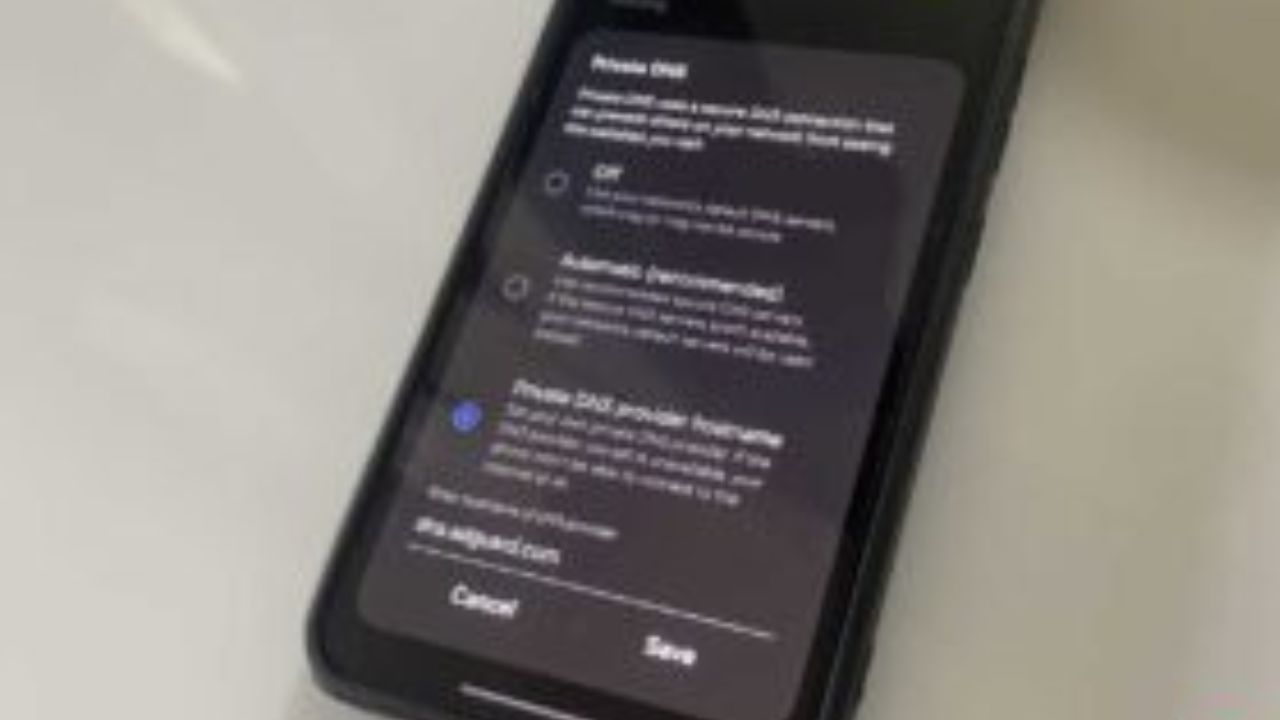
You can change your device’s DNS server to improve speed, security, and content filtering. This is done by manually updating your network settings to point to a third-party DNS provider instead of your Internet Service Provider’s default.
Table of Contents
What are DNS Servers and Why You Might Want to Change Them
DNS, or the Domain Name System, acts as the internet’s phonebook. It translates human-readable domain names, like google.com, into the numerical IP addresses that computers use to connect to servers.
Most Internet Service Providers (ISPs) offer their own DNS servers. While functional, these are often slower and less reliable than those provided by dedicated DNS companies. Services like Google DNS and Cloudflare DNS are popular because they offer speed and stability improvements.
However, other DNS providers exist that not only match those benefits but also add specialized features like ad blocking, enhanced security, or content filtering. These can offer a significant upgrade over standard ISP offerings.
Key Facts About DNS Servers
- DNS (Domain Name System) converts domain names into IP addresses.
- ISP DNS servers are often slower than third-party options.
- Google DNS and Cloudflare DNS are popular for speed and reliability.
- Other providers offer specialized features like ad blocking and malware protection.
- Changing your DNS settings can enhance security and browsing experience.
How to Change Your DNS Server Settings
To change your DNS server, you will need to access your device’s network settings or your router’s configuration page. The exact steps vary depending on your operating system or router model.
Typically, you will look for a section related to “Network,” “Internet,” or “DNS settings.” Here, you can manually input the IP addresses of the new DNS servers you wish to use.
It is recommended to write down your current DNS settings before making any changes. This allows you to revert to your ISP’s servers if you encounter issues or wish to switch back.
After changing the settings, you may need to restart your device or flush your DNS cache for the changes to take full effect.
AdGuard DNS: Blocking Ads and Trackers at the DNS Level
AdGuard DNS provides an effective way to block advertisements and tracking elements directly at the DNS level. This means it prevents your device from even connecting to domains known for serving ads or tracking your online activity.
This method is particularly useful for combating intrusive ads, such as those often seen on platforms like YouTube. However, it’s important to note a limitation: AdGuard DNS cannot block ads that are served from the same domain as the website’s content. This is a fundamental constraint of DNS-based blocking.
While the free version of AdGuard DNS is robust, a paid version is available. This premium offering can extend ad-blocking capabilities to apps and allows for custom filtering rules, which can be useful for blocking specific types of content like gambling sites or social media platforms.
Quad9 DNS: Enhanced Malware and Phishing Protection
Quad9 DNS prioritizes your online security by actively blocking malicious websites, including those involved in malware distribution and phishing scams. It achieves this by cross-referencing every DNS query against a continuously updated threat intelligence feed.
This threat feed is compiled from more than 20 different cybersecurity organizations, ensuring a comprehensive and up-to-date list of dangerous domains. When your device attempts to access a domain flagged as malicious, Quad9 immediately blocks the request, preventing potential harm.
Unlike Google DNS and Cloudflare DNS, which typically resolve all queries by default, Quad9 proactively protects users. It is also a non-profit organization based in Switzerland, known for strong privacy laws, and commits to not collecting user data.
CleanBrowsing DNS: Parental Controls and Content Filtering
For users concerned with online content, especially those with children, CleanBrowsing DNS offers robust parental control and content filtering features. Its primary offering, the Family Filter, blocks adult content and mixed-content websites across all platforms.
This filter also enforces SafeSearch on major search engines like Google and YouTube, further restricting access to inappropriate material. Additionally, CleanBrowsing can block VPNs and proxy services, preventing them from being used to circumvent the set restrictions.
While CleanBrowsing provides a powerful way to manage online content, its DNS-level filtering can occasionally be overly broad, potentially blocking legitimate sites. The ability to create a whitelist for specific domains is available, but this feature is part of their paid plan.
Mullvad DNS: A Versatile Free Option for Privacy and Blocking
Mullvad offers a versatile and completely free DNS service that appeals to users seeking a blend of privacy and content blocking. While known for its VPN service, Mullvad’s DNS is a strong standalone option.
The default endpoint, dns.mullvad.net, provides fast and private DNS resolution without any blocking. For users who want more, Mullvad offers several specialized DNS options. These include ad-blocking DNS, base DNS with malware blocking, and extended options that block ads, trackers, and social media sites.
Mullvad maintains a strict no-logs policy, ensuring your DNS queries are not stored or sold. This commitment to privacy sets it apart from services like Google DNS and Cloudflare DNS, neither of which have a comparable no-logs policy.
Frequently Asked Questions
What is the primary function of a DNS server?
A DNS server’s main job is to translate human-readable domain names (like example.com) into machine-readable IP addresses (like 192.168.1.1), allowing devices to connect to the correct internet resources.
Why would I change from my ISP’s default DNS server?
ISP DNS servers can be slower and less reliable. Switching to a third-party DNS provider like Google DNS or Cloudflare can offer improved speed, stability, and additional features like enhanced security or ad blocking.
Can DNS servers block ads effectively?
Yes, some DNS servers, like AdGuard DNS and specific Mullvad configurations, can block ads and trackers by preventing connections to known ad-serving domains. However, they cannot block ads embedded within website content from the same domain.
How does Quad9 protect against online threats?
Quad9 cross-references DNS queries against a threat intelligence feed from over 20 cybersecurity organizations. If a queried domain is flagged as malicious or a phishing attempt, Quad9 blocks the request before it can lead to harm.
What kind of parental controls does CleanBrowsing offer?
CleanBrowsing’s Family Filter blocks adult content and mixed-content sites, enforces SafeSearch on search engines, and can also block VPNs and proxies to help enforce restrictions for children.
