


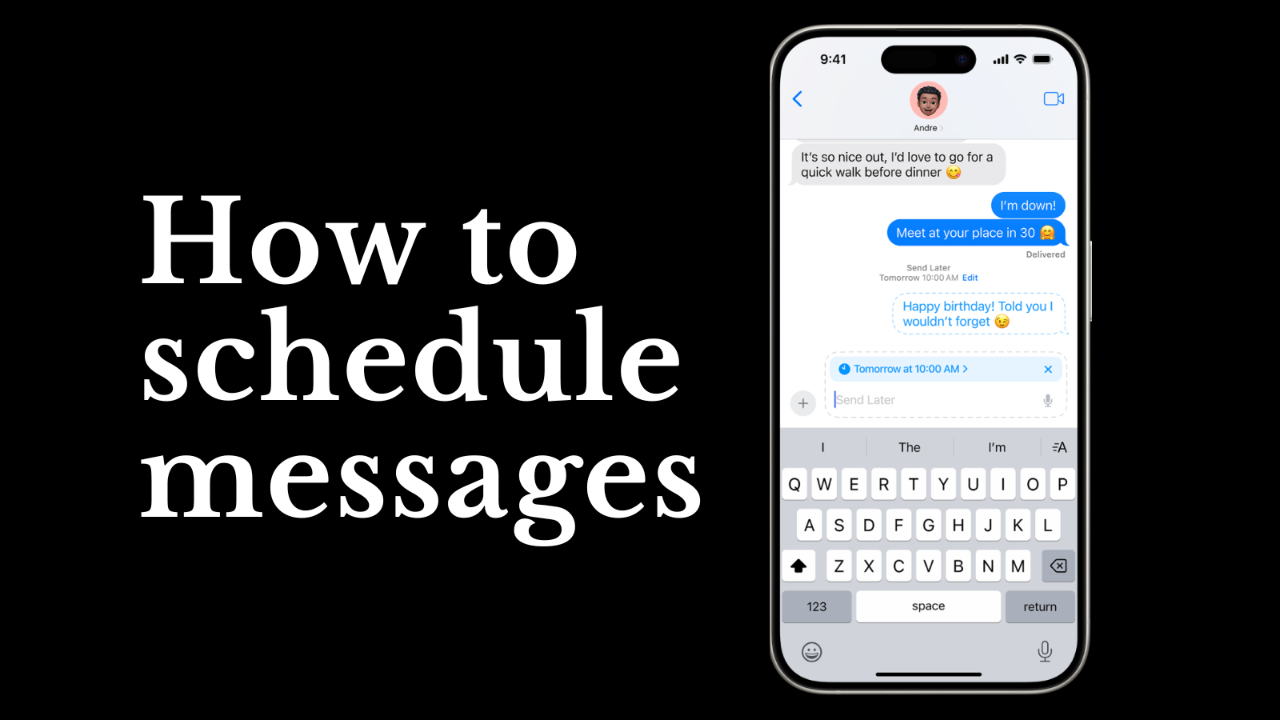
You can schedule text messages directly on your iPhone with iOS 18, ensuring your important communications arrive exactly when intended. This guide shows you the simple steps to schedule messages, how to manage them, and the required iOS version.
Table of Contents
Schedule Texts on Your iPhone Directly
Never miss an important occasion or reminder again. Scheduling text messages directly from your iPhone ensures your messages are delivered at the precise moment you intend, whether for a birthday wish or a crucial reminder.
This native functionality, available with iOS 18 and later, eliminates manual timing and ensures your communications are timely and reliable.
What You Need to Schedule Texts
To schedule text messages on your iPhone, you need one primary requirement.
You must have an iPhone running iOS 18 or later.
Step 1: Start a New or Existing Conversation
Open the Messages app on your iPhone. You can start a new conversation by selecting a contact or choose an existing thread where you want to schedule a message.
Step 2: Access the ‘Send Later’ Option
Once you are in the conversation, locate the text input field. Next to this field, you will see a ‘+’ icon. Tap this icon.
A menu will appear. Select the ‘Send Later‘ option to proceed with scheduling your message.
Step 3: Choose Your Desired Send Time
After selecting ‘Send Later,’ a time-setting interface appears. Tap on the time field to open the scheduler.
You can choose a specific time and date for your message to be sent, with options available up to 14 days in advance. As you set your desired time, the border of the text field changes to a dashed line.
Step 4: Type and Schedule Your Message
With the text field showing a dashed border, type the message you wish to send. Ensure your message is complete and accurate.
After typing, tap the send arrow. This action schedules your message for delivery at your selected time.
Tips & Troubleshooting for Scheduled Texts
How to Edit or Cancel a Scheduled Message
If you need to make changes, you can edit or cancel a scheduled message. Touch and hold the scheduled message within the conversation thread.
This action brings up options to modify your message or cancel it entirely before it is sent.
What If My iPhone Is Off When the Message Is Scheduled?
Scheduled messages will send even if your iPhone is turned off at the designated time. The system ensures delivery without requiring your device to be actively on or connected to a network.
What iOS Version is Required?
The ability to schedule text messages natively within the Messages app requires your iPhone to be running iOS 18 or later.
Before iOS 18, users relied on workarounds, such as the Shortcuts app, to achieve delayed message sending.
Conclusion: Send Smarter, Not Harder
Scheduling text messages on your iPhone offers a simple yet powerful way to manage your communications. This feature helps ensure important messages are sent on time, enhancing your reliability and efficiency.
By utilizing the ‘Send Later’ option, you can free yourself from remembering specific send times, making your use of the Messages app more streamlined.
Frequently Asked Questions
How do I schedule a text message on my iPhone?
To schedule a text message on your iPhone, open the Messages app, go to a conversation, tap the ‘+’ icon, select ‘Send Later,’ choose your desired time (up to 14 days in advance), type your message in the dashed text field, and tap the send arrow.
Can I edit or cancel a message I’ve already scheduled?
Yes, you can edit or cancel a scheduled message. Simply touch and hold the scheduled message within the conversation thread to access modification options or cancellation.
What iOS version do I need to schedule texts natively?
You need iOS 18 or later to use the native text scheduling feature directly within the Messages app on your iPhone.
Will my scheduled text send if my iPhone is turned off?
Yes, scheduled messages will send even if your iPhone is turned off at the scheduled time. The system handles the delivery automatically.
