


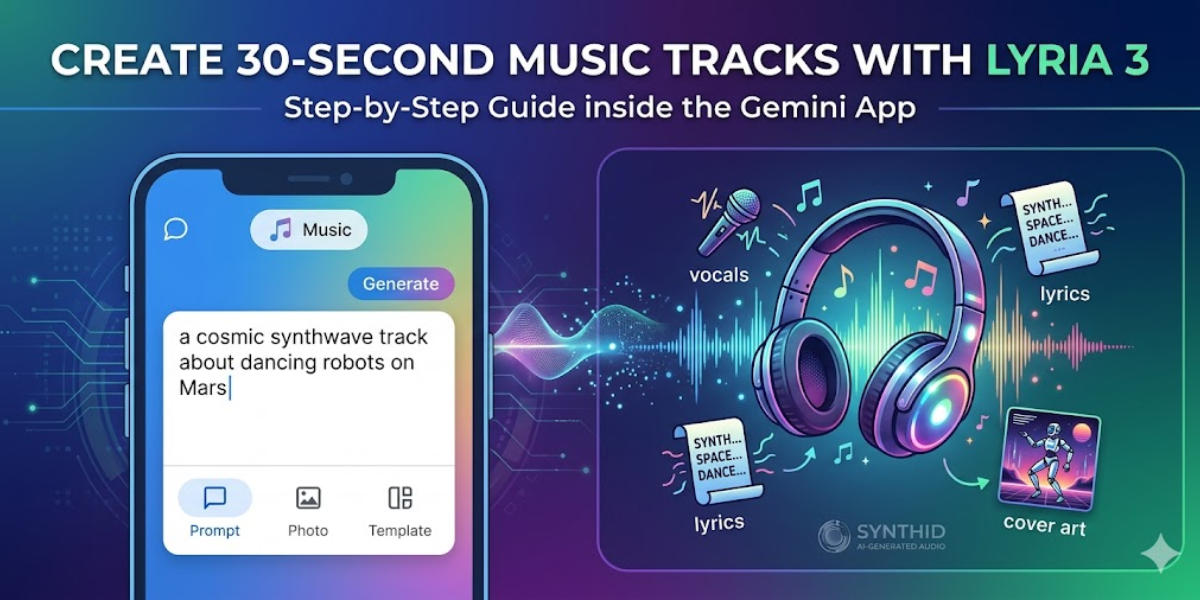
You can now generate a fully produced 30-second song — complete with vocals, lyrics, and cover art — right inside the Gemini app using nothing but a text prompt. Below you’ll find: a full step-by-step walkthrough, prompt-writing tips, and a breakdown of Lyria 3 vs. Lyria 3 Pro.
Google rolled this feature out to roughly 750 million Gemini users, so there’s a good chance you already have access.
Table of Contents
What you’ll need
- A Google account signed in on your device
- The Gemini app (iOS or Android) or Gemini on the web
- You must be 18 or older
- An active internet connection
A Google One AI Premium plan unlocks higher usage limits and access to Lyria 3 Pro, which generates tracks up to 3 minutes. Free users get Lyria 3 with 30-second tracks.
Step 1: Open the Gemini app and locate the music generation feature
Launch the Gemini app on your phone or navigate to gemini.google.com in your browser. Look for the music generation option in the prompt area — it appears as a selectable model or tool alongside the standard chat input. The feature is in beta, so make sure your app is updated to the latest version.
If you don’t see it right away, try scrolling through the available tools or check for an app update in your device’s store. Availability is limited to users 18+ and may vary by region.
Step 2: Choose your starting point — prompt, template, or photo
You have three ways to kick off a track. Each one shapes the output differently, so pick the method that matches your creative starting point.
Crafting an effective text prompt
Type a description that covers genre, mood, and theme. For example: “a comical R&B slow jam about a sock finding their match.” The more specific your prompt, the more tailored the result. You can mix genres, reference eras, or describe a scene.
Using a photo as inspiration
Upload an image from your camera roll or take a new photo. Lyria 3 analyzes the visual content and generates a track — with lyrics — that matches the mood and subject of the image. This works well for turning a vacation snapshot or a funny moment into a soundtrack.
Browsing the template gallery
Select a pre-made template from the gallery to get a head start. Each template sets a genre and energy level; you then add your own details to personalize the track. This is the fastest path if you’re not sure what to prompt.
Step 3: Generate your 30-second track
After submitting your prompt, photo, or template selection, Lyria 3 goes to work. Generation typically takes a few seconds. The model automatically produces both instrumentals and vocals with lyrics — you don’t need to write or provide any lyrics yourself.
Once complete, the track plays directly in the chat window. Every generated track is embedded with SynthID, an imperceptible watermark that identifies it as Google AI-generated content.
Step 4: Review, regenerate, or refine your track
Listen to the result and decide if it hits the mark. If not, tap the regenerate option to get a fresh take, or tweak your prompt to shift the genre, tempo, or mood. You can iterate multiple times until the track sounds right.
Keep in mind that the SynthID watermark is embedded in every track and cannot be removed. This is by design, so listeners can verify the audio was generated by AI.
Step 5: Download and share your track
When you’re happy with your track, tap the download button to save it as an MP3 or MP4 file. Each track also comes with custom cover art generated by the Nano Banana image model, so your creation looks as good as it sounds.
Share the file to your group chat, social media, or any platform that supports audio or video. The MP4 format is especially handy for posting to Instagram, TikTok, or other video-first platforms.
Tips & troubleshooting
Writing better prompts
Include at least two of these elements: genre (lo-fi, disco, hip-hop), mood (melancholy, energetic, dreamy), and theme (a specific story or subject). Avoid vague prompts like “make a good song” — specificity drives quality.
Understanding Lyria 3 vs. Lyria 3 Pro
Lyria 3 is free and creates tracks up to 30 seconds, optimized for quick iteration and social sharing. Lyria 3 Pro requires a Google AI Plus, Pro, or Ultra plan and generates tracks up to 3 minutes with higher quality and more musical complexity. Choose based on how long and polished you need the final track to be.
Feature not showing up?
First, update the Gemini app to the latest version. Confirm you’re signed in with a Google account and that your birth date meets the 18+ requirement. The feature is in beta and rolling out gradually, so it may not be available in every region yet.
If it still doesn’t appear, wait a few days and check again.
Conclusion
You now know how to open the music generation tool in Gemini, craft a prompt or upload a photo, generate a 30-second track with vocals and lyrics, and download it as an MP3 or MP4. With Lyria 3 available to hundreds of millions of users, AI music generation is more accessible than ever. Try a few different prompts, experiment with photo-based tracks, and share what you create.
Frequently Asked Questions
Is the Gemini AI music generator free to use?
Lyria 3 is free and generates 30-second tracks. Lyria 3 Pro, which supports tracks up to 3 minutes, requires a paid Google AI Plus, Pro, or Ultra subscription and comes with higher usage limits.
Can I use the 30-second tracks I create for commercial purposes?
Check Google’s latest terms of service for the most current usage rights. All tracks carry the SynthID watermark, which identifies them as AI-generated, and this watermark cannot be removed.
What languages does Lyria 3 support for music generation?
Lyria 3 supports music generation in multiple languages. The feature is available in beta for users 18+ across several languages, though the full list of supported languages may expand over time.
How is Lyria 3 different from Lyria 3 Pro?
Lyria 3 is free, generates tracks up to 30 seconds, and is optimized for speed and social sharing. Lyria 3 Pro is a paid option that produces tracks up to 3 minutes with higher audio quality and more advanced customization.
Can I remove the SynthID watermark from generated tracks?
No. SynthID is an imperceptible watermark embedded in every track generated through the Gemini app. It is designed to be permanent so listeners can verify that the audio was created by Google AI.
