


You can enhance your Windows experience by installing and utilizing several free, open-source applications. This guide will demonstrate how to install and configure these tools to improve productivity, streamline communication, and customize your desktop. The methods described are compatible with Windows 10 and Windows 11.
Table of Contents
Key Facts
- Operating System: Windows 10, Windows 11
- Time Needed: Approximately 15-30 minutes per application for installation and basic configuration.
- Prerequisites: An active internet connection to download applications, basic familiarity with installing software on Windows.
Before You Start
- Ensure you have a stable internet connection to download the application installers.
- Familiarize yourself with the standard software installation process on Windows, which typically involves running an executable file and following on-screen prompts.
- Close unnecessary applications to ensure smooth downloads and installations.
Install Scolect for Usage Tracking
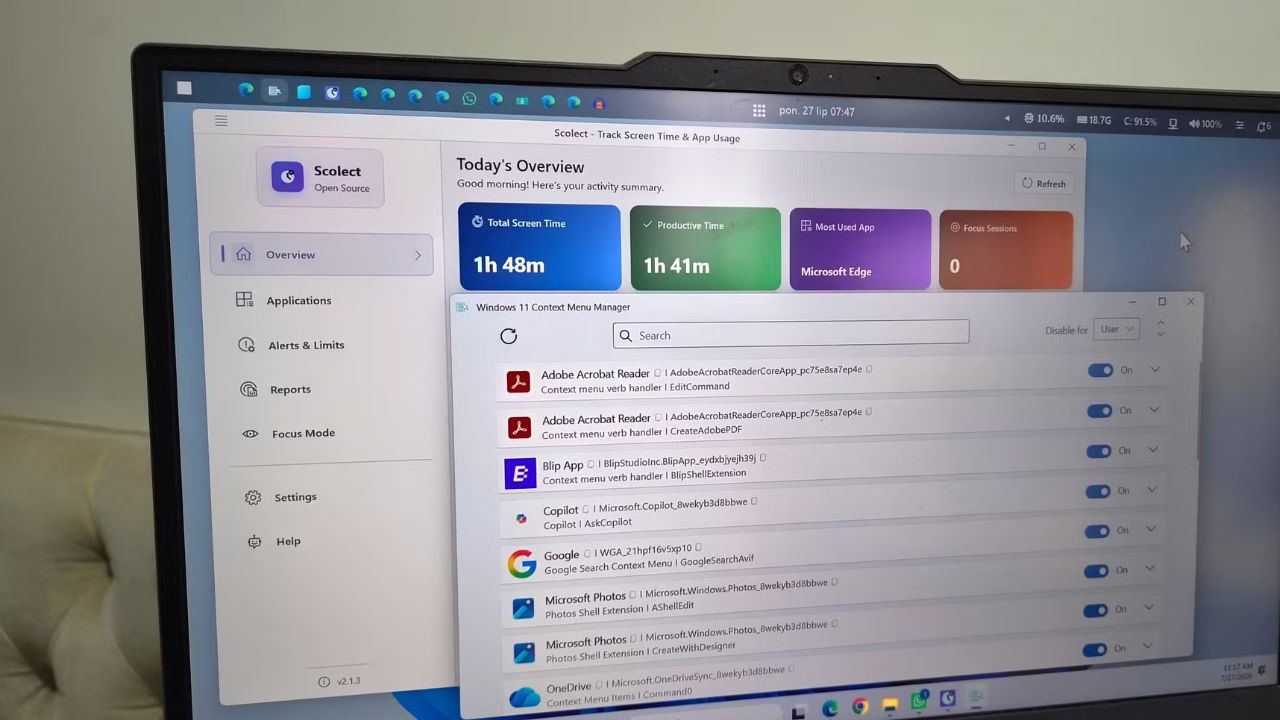
Install Scolect to monitor your application usage and understand your productivity patterns. This tool runs in the background, categorizing your app usage and providing detailed reports without requiring a subscription. It helps fill a gap in Windows’ native features by offering insights into how you spend your time on your PC. You can later use this data to set app timers and alerts for daily screen time, promoting better digital habits. All collected data is stored locally on your computer for privacy.
Install Franz for Unified Messaging
Install Franz to consolidate multiple messaging and communication applications into a single interface. This addresses the common frustration of switching between various apps like WhatsApp, Slack, and Gmail throughout the day.
Franz brings over 70 services together into one window, ensuring you don’t miss important notifications by keeping them all in one accessible place. While Franz offers a free tier that supports up to three services, a paid subscription is available for access to additional services.
Install YASB for a Customizable Status Bar
Install Yet Another Status Bar (YASB) to add a macOS-style status bar to the top of your Windows desktop permanently. By default, it displays active application names, time, notification counts, and volume levels, along with quick access buttons for shutdown, restart, sleep, and logout.
The true power of YASB lies in its extensive widget system, allowing you to add system monitoring tools, weather updates, media player controls, and more. Its design is highly customizable through themes, enabling you to match your desktop aesthetic. YASB also offers native integration with tiling window managers like GlazeWM and Kobmorebi.
Install FluentCleaner for System Cleanup
Install FluentCleaner to efficiently manage junk files, browser clutter, and outdated registry entries on your Windows PC. This tool scans your system for removable data and allows you to review items before deletion, offering a cleaner approach than some commercial alternatives.
FluentCleaner operates without advertisements, persistent upgrade prompts, or subscription demands. Built with WinUI 3, it provides a native Windows 11 look and feel, and its portable nature means you can run it directly from a USB drive without a formal installation.
Install Windows 11 Context Menu Manager for Right-Click Menu Customization
Install Windows 11 Context Menu Manager to simplify your right-click menu by removing unwanted entries. This tool directly tackles the common annoyance of overly long or cluttered context menus in Windows 11. Instead of manually editing the Windows Registry, you can use simple toggles within the application to disable specific context menu items. This includes options for applications like OneDrive, Adobe Acrobat, Copilot, and the Photos app, allowing you to declutter the menu and access needed options more quickly.
Install TrafficMonitor for Network Speed Display
Install TrafficMonitor to display real-time internet upload and download speeds directly on your Windows taskbar. This offers a more direct and configurable alternative to the built-in, but less flexible, internet speed test option in Windows.
TrafficMonitor can also be configured to show other system information, such as CPU and RAM usage, CPU temperature, and total network traffic. You can customize its appearance with different fonts and themes, and even change it into a floating window that remains visible above other applications for constant monitoring.
If It Doesn’t Work
-
Application Fails to Launch
Ensure you have downloaded the correct installer for your system’s architecture (e.g., 64-bit). Try running the installer as an administrator by right-clicking the file and selecting “Run as administrator.” Antivirus software may occasionally block new applications; check your antivirus logs and temporarily disable it if necessary during installation.
-
Features Are Missing or Not Working
Confirm that your Windows version is up-to-date. Some applications, like FluentCleaner, are built with newer Windows features (WinUI 3) and may require specific Windows updates. For YASB, ensure any Tiling Window Managers it integrates with are correctly installed and configured.
-
Installation Errors Occur
Download the installer again, as the initial download may have been corrupted. Verify that your internet connection is stable. Check that you have sufficient free disk space on your system drive. Some applications may also require specific .NET Framework versions; the installer usually prompts for these if needed.
Alternatives
If you prefer not to install third-party applications or if these options do not meet your specific needs, Windows offers some built-in functionalities. For basic task management and performance monitoring, the built-in Task Manager provides insights into running processes and resource usage. For simple file cleanup, the Disk Cleanup utility, accessible via Windows search, can remove temporary files and system cache.
Unified messaging can be partially achieved through web versions of services or by using multiple browser tabs, though this lacks a streamlined interface. For right-click menu customization without extra software, advanced users can manually edit the Windows Registry, though this is a more complex and risky process.
Frequently Asked Questions
What is the primary benefit of using open-source applications on Windows?
Open-source applications are typically free to use, often offer greater transparency due to their accessible code, and can provide specialized features that enhance the default Windows experience.
Do I need to pay for any of these applications?
Scolect, YASB, FluentCleaner, Windows 11 Context Menu Manager, and TrafficMonitor are completely free. Franz offers a free tier with limitations, with a paid subscription for full access.
Can these applications be installed on older versions of Windows?
The guide focuses on Windows 10 and Windows 11. While some applications might function on older versions, compatibility is not guaranteed, and installation may require different steps or prerequisites.
Is it safe to download and install open-source software?
Generally, yes. Download from official websites or trusted repositories like GitHub. Always check reviews and community feedback. Be cautious of unofficial sources that may bundle malware with software.
Next Steps
Explore other ways to customize your Windows environment, such as optimizing startup programs to speed up boot times.
