


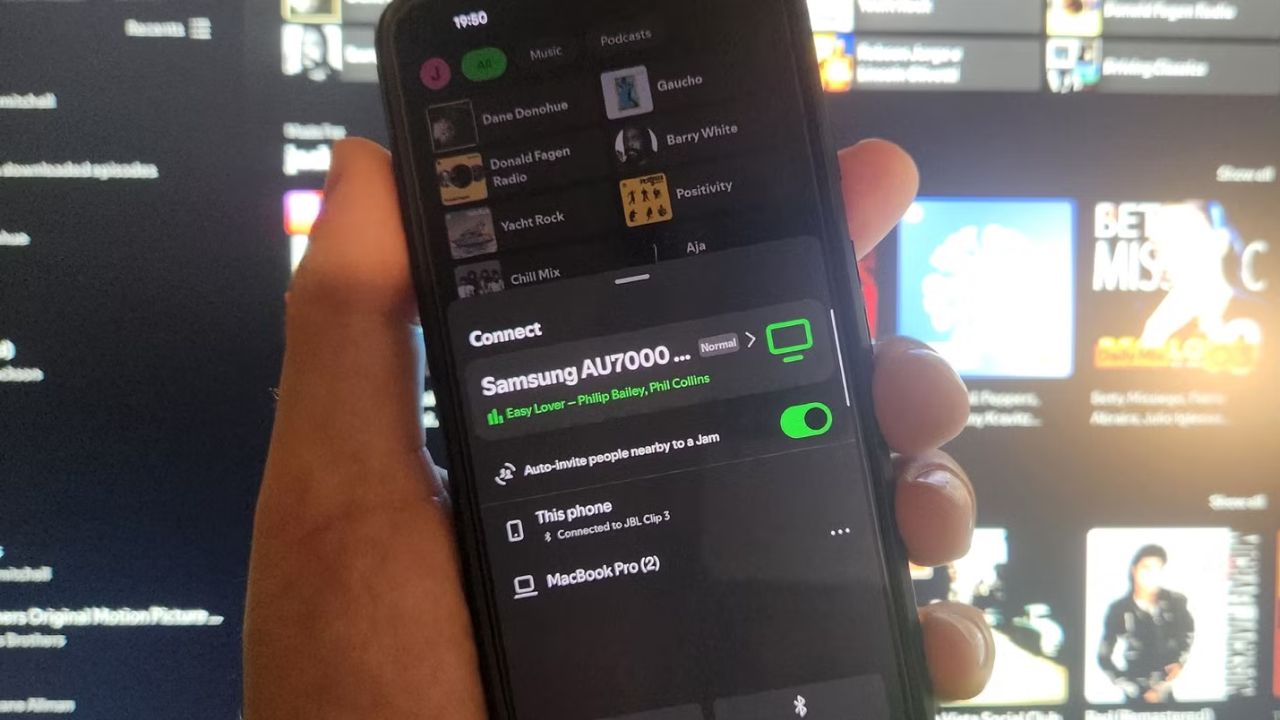
You can replace your multi-room audio setup with a single Spotify feature called Spotify Connect to control playback across multiple compatible devices. This functionality is available across all currently supported versions of the Spotify application on desktop, mobile, and web players.
Table of Contents
Key Facts About Spotify Connect
Spotify Connect allows you to stream music directly from Spotify’s servers to a chosen device, bypassing the need for Bluetooth or keeping your phone occupied. This feature is integrated into many modern smart speakers, streamers, soundbars, and smart TVs.
The estimated time needed to set up and begin using Spotify Connect is less than 5 minutes, assuming your devices are already set up and connected to your Wi-Fi network. The primary prerequisite is having a Spotify Premium subscription and compatible playback devices.
Before You Start
- Ensure you have an active Spotify Premium subscription. Spotify Connect functionality is generally not available for free, ad-supported accounts.
- Verify that your audio playback devices, such as smart speakers, soundbars, smart TVs, or streaming boxes, are compatible with Spotify Connect. Check the manufacturer’s specifications for each device.
- Ensure all your chosen devices are connected to the same Wi-Fi network as the device you will use to control playback (your phone, tablet, or computer).
- Download and install the latest version of the Spotify application on your primary control device (smartphone, tablet, or computer).
Step 1: Open Spotify and Find the Connect Icon
Open the Spotify application on your smartphone, tablet, or computer. Navigate to the Now Playing screen to locate the Devices Available icon.
Step 2: Select Your Playback Device
Tap the Devices Available icon. A list of compatible Spotify Connect devices on your network will appear. Select the device you wish to stream audio to.
Step 3: Control Playback
Control your music playback using your smartphone or tablet as a remote. You can pause, play, skip tracks, and adjust volume for the selected device. You can also switch playback between different compatible devices seamlessly without interrupting your music.
Step 4: Use Spotify Connect Across Devices
Continue listening to music as you move between rooms or switch tasks. Your phone can be locked, used for other applications, or even switched off, and playback will continue on the selected Spotify Connect device. You can also invite friends to join your listening session by sharing a link or QR code.
If It Doesn’t Work
- Failure Case: Device Not Appearing
If your intended playback device does not appear in the Spotify Connect list, first confirm that both your device and your primary control device are connected to the same Wi-Fi network. Restart both your Spotify app and the playback device. Check the playback device’s manual to ensure Spotify Connect compatibility and that the feature is enabled. - Failure Case: Intermittent Connection or Stuttering Audio
Poor Wi-Fi signal strength or network congestion can cause playback issues. Ensure a stable Wi-Fi connection for all devices. Try moving your playback device closer to the router or reducing other network traffic. Restarting your router may also resolve connectivity problems. - Failure Case: Spotify App Crashes or Freezes When Connecting
If the Spotify application becomes unresponsive when trying to use Connect, ensure you have the latest version of the app installed. Try clearing the Spotify app’s cache or reinstalling the application. A device restart for your phone or tablet can also sometimes resolve these issues. - Failure Case: Free Account Limitations
If you are using a free Spotify account, Spotify Connect functionality may be limited or unavailable. You generally need a Spotify Premium subscription to fully utilize Spotify Connect features across different devices. Verify your subscription status within your Spotify account settings.
Alternatives to Spotify Connect
While Spotify Connect offers a streamlined experience, there are alternative methods for multi-room audio and device control when Spotify Connect is not an option:
- Bluetooth: This is a versatile option for connecting to portable speakers or devices in areas without Wi-Fi. However, Bluetooth requires your phone to remain within range and actively stream, leading to faster battery drain and potential interruptions.
- Casting (e.g., Chromecast): If your devices support casting protocols like Chromecast built-in or AirPlay, you can stream audio from Spotify and other apps to these devices. This is similar to Connect in that the device streams directly from the internet, but it often relies on a specific casting protocol.
- Manufacturer-Specific Apps: Some audio system manufacturers offer their own apps that allow for synchronized playback across their branded speakers. This approach can be effective but locks you into a single brand’s ecosystem.
- Wired Connections: For older stereo systems or speakers, a wired connection via an auxiliary cable from your device to the speaker is always a reliable, albeit less convenient, option.
Frequently Asked Questions
What is the difference between Spotify Connect and Bluetooth?
Spotify Connect streams directly from Spotify’s servers to your device, allowing your phone to be locked or used for other tasks. Bluetooth streams directly from your phone, consuming battery and requiring your phone to remain active and within range.
Do I need Spotify Premium for Spotify Connect?
Yes, a Spotify Premium subscription is generally required to use the full functionality of Spotify
