


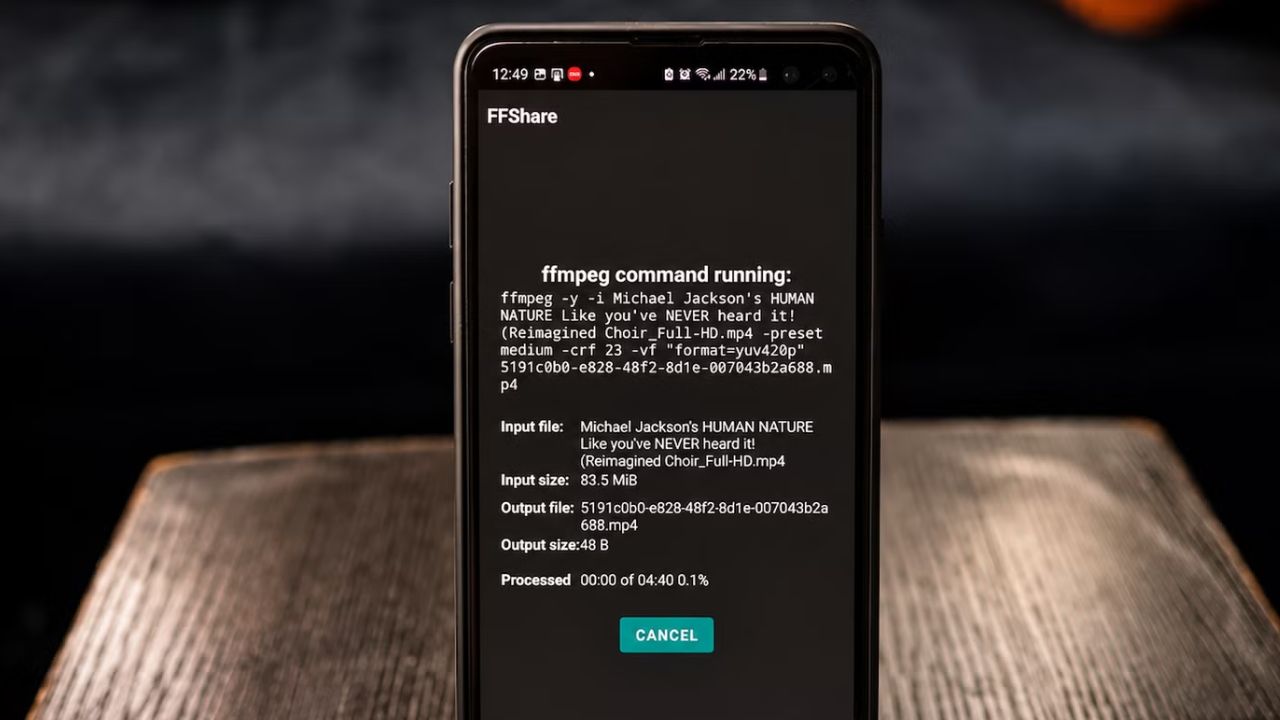
You can automatically shrink files before sharing them on Android using the FFShare app, allowing for faster transfers. This method requires Android version 4.1 or newer for installation, although the app’s functionality is optimized for more recent Android operating system versions.
Table of Contents
Key Facts
- App: FFShare (open-source)
- Operating System: Android 4.1 (Jelly Bean) or newer recommended
- Time to shrink: Typically under 2 seconds for images, up to 4 minutes for videos
- Prerequisites: Access to F-Droid or GitHub Releases for installation, understanding of basic Android sharing functions.
Before You Start
Ensure your Android device is running Android 4.1 or a later version. You will need to enable installation from unknown sources if you are not using a platform like F-Droid, which manages installations. Have a file (image or video) ready that you intend to share to test the app.
Install FFShare
Download the FFShare application. The easiest method is to use the F-Droid client, a free and open-source app store for Android. If F-Droid is not installed, you can download the FFShare APK directly from the GitHub Releases page for the project. Choose the appropriate APK build for your device; the “Full” build is universal and recommended if unsure.
Enable Unknown Sources (if necessary)
If you are installing the APK directly from GitHub or another source outside of a trusted app store, you may need to permit installations from your browser or file manager. Navigate to your device’s Settings, then Security or Biometrics and Security, and find the option to enable installation from unknown sources for the browser or file manager you are using.
Grant Storage Permissions
Upon the first launch of FFShare, you will be prompted to grant it access to your device’s storage. This permission is necessary for the app to locate and read the files you intend to share, and to write the compressed versions to its cache. Granting this permission allows FFShare to function correctly.
Configure FFShare Settings
Open FFShare. For most users, the default settings are suitable. You can access the settings via the gear icon or menu. Key settings include Video Codec and Audio Codec, which are best left on ‘Do not specify’ to let FFmpeg decide. The FFmpeg compression preset is set to ‘medium’ by default, offering a good balance between file size and quality. Image and video output extensions can also be retained as original.
Adjust Compression Levels
Modify the compression settings if you need smaller files at the expense of quality. The default Video crf is set to 23, and the JPEG image qscale is set to 10. Lowering the resolution or increasing the CRF value for videos or the qscale for images will result in more aggressive compression and smaller file sizes. Be aware that higher compression can reduce visible detail.
Share a File Using FFShare
Initiate the sharing process from your preferred gallery or file manager app. Select the photo or video you wish to share, then tap the Share icon. In the list of available apps, choose FFShare. FFShare will process the file and then present Android’s native sharing menu again, allowing you to select your final destination, such as a messaging app.
Understand FFShare’s Cache
Note that FFShare does not save the compressed files permanently to your device by default. Compressed outputs are stored in the app’s cache. Files older than an hour are eligible for automatic cleanup. If you wish to keep a compressed version, you must immediately share it to a permanent storage location or file-saving app.
If It Doesn’t Work
App Crashes or Freezes
If FFShare crashes or freezes during file processing, ensure you have granted storage permissions and that the file is not corrupted. Try updating FFShare to the latest version available on F-Droid or GitHub. A device restart may also resolve temporary software glitches impacting app performance.
Files Not Shrinking Significantly
If the file size reduction is minimal, the original file might already be highly compressed or very small. You can achieve greater reduction by adjusting the FFmpeg compression preset to ‘fast’ or ‘slow’ (though ‘slow’ takes much longer), or by manually lowering the Video CRF or Image qscale values in the app’s settings.
FFShare Not Appearing in Share Menu
If FFShare does not show up in your device’s share sheet, it may be due to a system setting or an app conflict. Some Android versions or custom interfaces may hide apps from the share menu. Ensure the app is installed correctly and try clearing the cache and data for your system’s share components.
Poor Quality After Compression
If the compressed file’s quality is unacceptably low, you likely used aggressive compression settings. Revisit FFShare’s settings and increase the Video CRF value (e.g., from 23 to 18) or decrease the JPEG image qscale (e.g., from 10 to 5). Balance quality with file size by testing different settings.
Alternatives
If FFShare is not compatible with your device or you prefer a different approach, consider using dedicated video editing apps that offer compression features, such as YouCut or CapCut, which allow manual adjustment of resolution and bitrate. Alternatively, cloud storage services like Google Drive or Dropbox can sometimes compress files for easier sharing, though this is not their primary function.
Frequently Asked Questions
Does FFShare compress all files automatically?
No, FFShare does not compress every file automatically. You must actively select FFShare from your device’s share menu to trigger the compression process for a specific file.
Can FFShare compress any file type?
FFShare supports common image formats like JPG, PNG, GIF, and WebP, and video formats such as MP4, MKV, WebM, AVI, and MOV. The full build also includes support for audio files like MP3 and AAC.
Where are the compressed files stored?
Compressed files are temporarily stored in FFShare’s cache. They are automatically eligible for cleanup after one hour unless you share them to a permanent storage location.
Is FFShare free to use?
Yes, FFShare is an open-source application and is available for free. There are no in-app purchases or advertisements associated with its use.
If you’re interested in optimizing media files for sharing, you might also want to explore how to convert HEVC to H.264 for broader compatibility.
