

DFS channels Wi-Fi: Stop drops by disabling auto-channel with firmware 2A

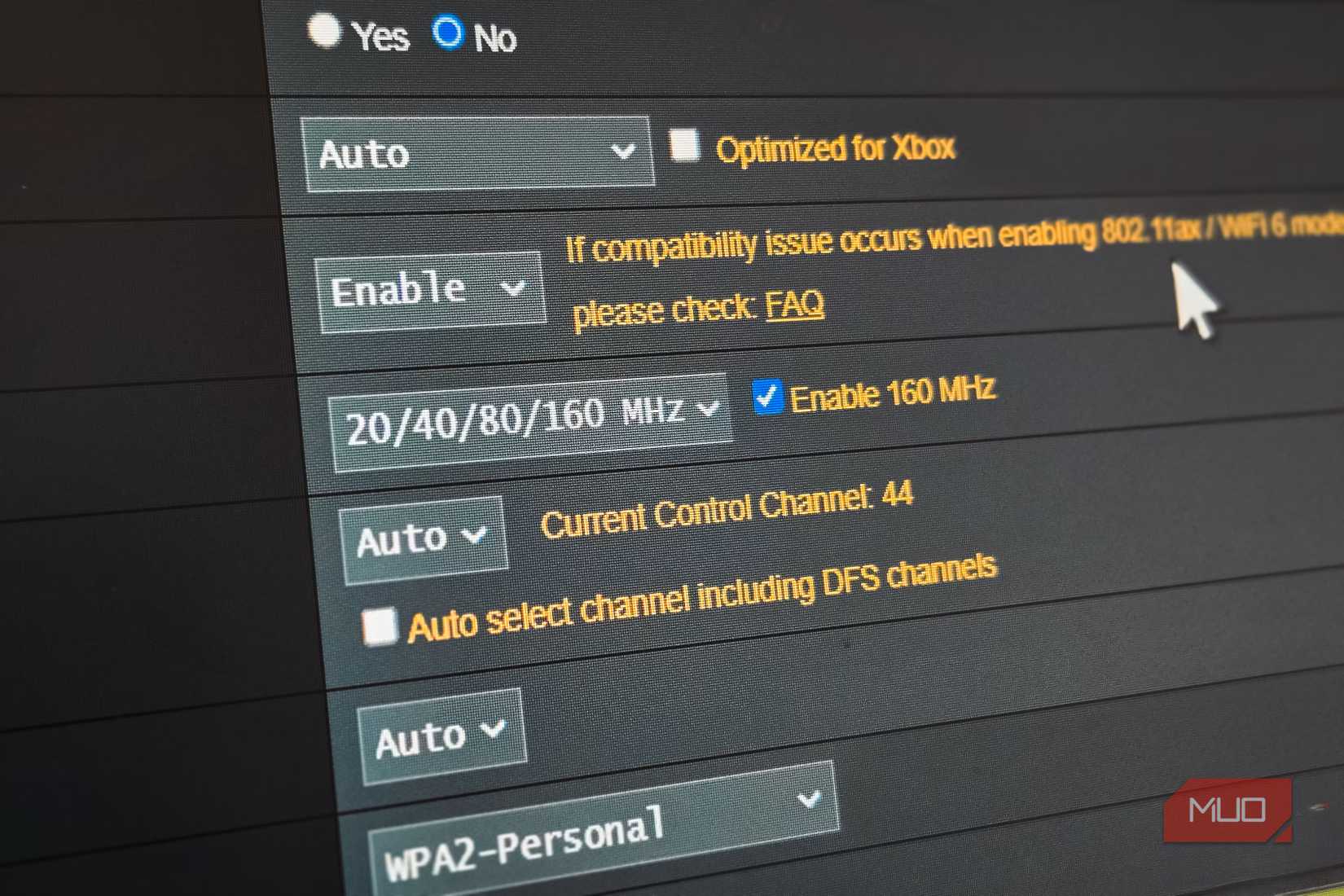
You can prevent your 5GHz Wi-Fi from dropping without warning by manually setting your router to avoid DFS channels. This requires accessing your router’s admin panel and adjusting Wi-Fi settings, typically available on routers supporting firmware version 2A or later.
Table of Contents
Understanding DFS Channels and Wi-Fi Instability
Your 5GHz Wi-Fi connection is likely experiencing unexpected dropouts because of Dynamic Frequency Selection (DFS) channels. While the 5GHz band offers faster speeds and more capacity than 2.4GHz, some of its channels are shared with critical services like weather radar and military operations.
To ensure these services are not interrupted, routers using DFS channels must perform a 60-second scan to check for radar activity before broadcasting. If radar is detected, your router will immediately switch to a different channel, causing a momentary disconnection for all connected devices.
This switching can happen at any time during operation. If your router detects radar while actively using a DFS channel, it must vacate that channel for at least 30 minutes. The frequency of these interruptions depends on your proximity to potential radar sources like airports or weather stations.
How to Identify and Manually Set Your Wi-Fi Channel
To stop your Wi-Fi from dropping, you need to identify if your router is using DFS channels and then manually select a non-DFS channel. Access your router’s administrative panel through a web browser. Navigate to the Wi-Fi settings, where you can view the current 5GHz band and channel.
DFS channels are typically located in the 52 through 64 range and the 100 through 144 range. If your router is set to any of these, it is using DFS channels.
You can avoid these by disabling the automatic channel selection feature in your router’s settings and manually choosing a channel from the non-DFS ranges, such as channels 36, 40, 44, or 48.
Some routers offer a specific toggle to disable DFS channel selection entirely. This prevents the router from even considering DFS channels when automatically selecting a channel. Once you disable auto-selection, you can manually choose a stable, non-DFS channel to prevent future disruptions.
The Trade-offs of Blocking DFS Channels
Disabling DFS channels on your router can lead to a limitation in maximizing your channel width to 160MHz. The 5GHz spectrum is divided into 20MHz-wide channels, and to achieve 160MHz width, your router must use four adjacent 20MHz channels. If any of these fall within the DFS range, it can cause instability.
While you won’t be able to utilize the full 160MHz channel width when avoiding DFS channels, you can still achieve stable connectivity with 80MHz bonded channels. This provides a significant speed increase over older standards without the risk of radar interference.
A stable 80MHz connection is generally more beneficial than a potentially unstable 160MHz connection that frequently disconnects. For most users, the reliability offered by non-DFS channels at 80MHz width will provide a better overall Wi-Fi experience.
Key Wi-Fi Channel Facts
- DFS channels are part of the 5GHz Wi-Fi band.
- These channels are shared with radar systems, requiring a 60-second scan for detection.
- If radar is detected, the router must switch channels, causing a temporary dropout.
- DFS channels are in the 52-64 and 100-144 ranges.
- Non-DFS channels include 36-48 and 149-165.
- Avoiding DFS channels can prevent Wi-Fi instability.
- Using non-DFS channels may limit channel width to 80MHz instead of 160MHz.
Troubleshooting Steps
- Access your router’s administrative panel via a web browser.
- Navigate to the Wi-Fi settings, specifically the 5GHz band configuration.
- Check the current channel and identify if it falls within the DFS ranges (52-64 or 100-144).
- Disable the automatic channel selection feature.
- Manually select a non-DFS channel (e.g., 36, 40, 44, 48, 149, 153, 157, or 161).
- Save your changes and restart your router if prompted.
- Monitor your Wi-Fi connection for stability.
Frequently Asked Questions
What are DFS channels?
DFS (Dynamic Frequency Selection) channels are a subset of the 5GHz Wi-Fi band that are also used by radar systems. Routers must scan these channels for radar activity before operating on them and may switch channels if radar is detected to avoid interference.
Why would my Wi-Fi be dropping?
Your Wi-Fi might be dropping because your router is using DFS channels. When radar signals are detected on these shared channels, your router is legally required to switch to a different channel, causing a temporary disconnection for your devices.
How can I tell if I’m using DFS channels?
You can check your router’s settings to see which 5GHz channel it is currently using. Channels in the 52 through 64 range and the 100 through 144 range are DFS channels. If your router is using any of these, it is using DFS channels.
What happens if I disable DFS channels?
If you disable DFS channels, your router will only use the non-DFS channels in the 5GHz band. This can significantly improve Wi-Fi stability by preventing unexpected disconnections caused by radar detection. However, it might limit your ability to use the maximum 160MHz channel width.
Can I still get good speeds without DFS channels?
Yes, you can still achieve excellent speeds without using DFS channels. While the highest 160MHz channel width might be unavailable, you can still utilize 80MHz bonded channels, which provide substantial throughput and a much more stable connection for your devices.
