


You want to block specific websites on your iPhone. This guide shows you how to use iPhone’s built-in Screen Time feature to restrict access in Safari and how Chrome utilizes these same system-wide iOS settings. We will cover setting up website blocks and managing downtime.
Table of Contents
Block Websites Using iPhone’s Screen Time
Apple’s Screen Time feature offers robust controls for managing your iPhone’s usage, including blocking specific websites. This method works across your device for apps that respect these system-wide settings.
To begin blocking websites, navigate to your iPhone’s Settings app. Scroll down and tap on Screen Time. If you haven’t used it before, you’ll need to turn it on and set it up.
You can choose to set it up for yourself or for a family member.
Setting Up Content & Privacy Restrictions
After enabling Screen Time, go to Content & Privacy Restrictions. Toggle the switch ON to enable these restrictions. This is the crucial step before you can set specific website limits.
Restricting Websites
Within Content & Privacy Restrictions, tap on Content Restrictions. Scroll down to the Web Content section. Here, you have a few options:
- Unrestricted Access: Allows access to all websites.
- Limit Adult Websites: Blocks adult content automatically and allows you to manually add sites to block.
- Allowed Websites Only: This is the most restrictive option, allowing access only to websites you explicitly permit.
For most users wanting to block specific sites, Limit Adult Websites is the most practical choice. Tap it, and then scroll down to the NEVER ALLOW section. Tap Add Website.
You can enter the specific website address you wish to block. For example, to block YouTube, you would enter youtube.com. You can add multiple websites here.
Alternatively, if you choose Allowed Websites Only, you will add websites to the ALWAYS ALLOW list. Any website not on this list will be blocked.
How Chrome Integrates with iPhone Website Blocking
When you set up website restrictions through iPhone’s Screen Time, these settings apply to Safari by default. Importantly, most third-party browsers, including Google Chrome, are designed to respect these system-wide iOS restrictions.
This means that any website you block using Screen Time will also be inaccessible within the Chrome app on your iPhone. You do not need to set up separate blocking rules within Chrome itself.
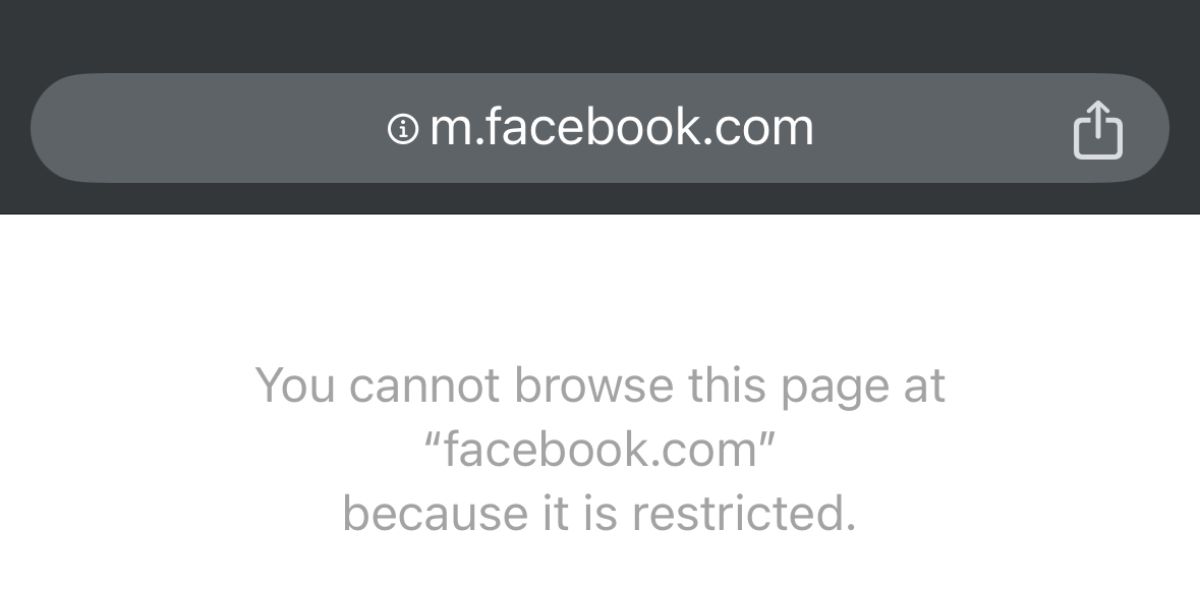
Simply ensure that Screen Time is configured correctly as outlined above. Then, when you or someone else tries to access a blocked website through Chrome, they will encounter a screen indicating that the website is restricted by Screen Time.
Managing Downtime and Scheduled Blocks
Screen Time also allows you to schedule periods when your iPhone usage is limited. This is known as Downtime.
In the main Screen Time menu, tap on Downtime. You can set a schedule for when certain apps and websites will be blocked. This is useful for enforcing breaks or limiting access during specific hours, such as bedtime.
During Downtime, only apps you choose to allow will be accessible. Websites blocked via Content Restrictions will also be inaccessible during this period.
To manage which apps and websites are allowed during Downtime or always, you can use the App Limits feature within Screen Time. You can set time limits for categories of apps or specific apps, and within the Content Restrictions, you can define allowed websites.
By using Screen Time‘s Content Restrictions and Downtime features, you gain effective control over website access on your iPhone, whether using Safari or apps like Chrome.
