


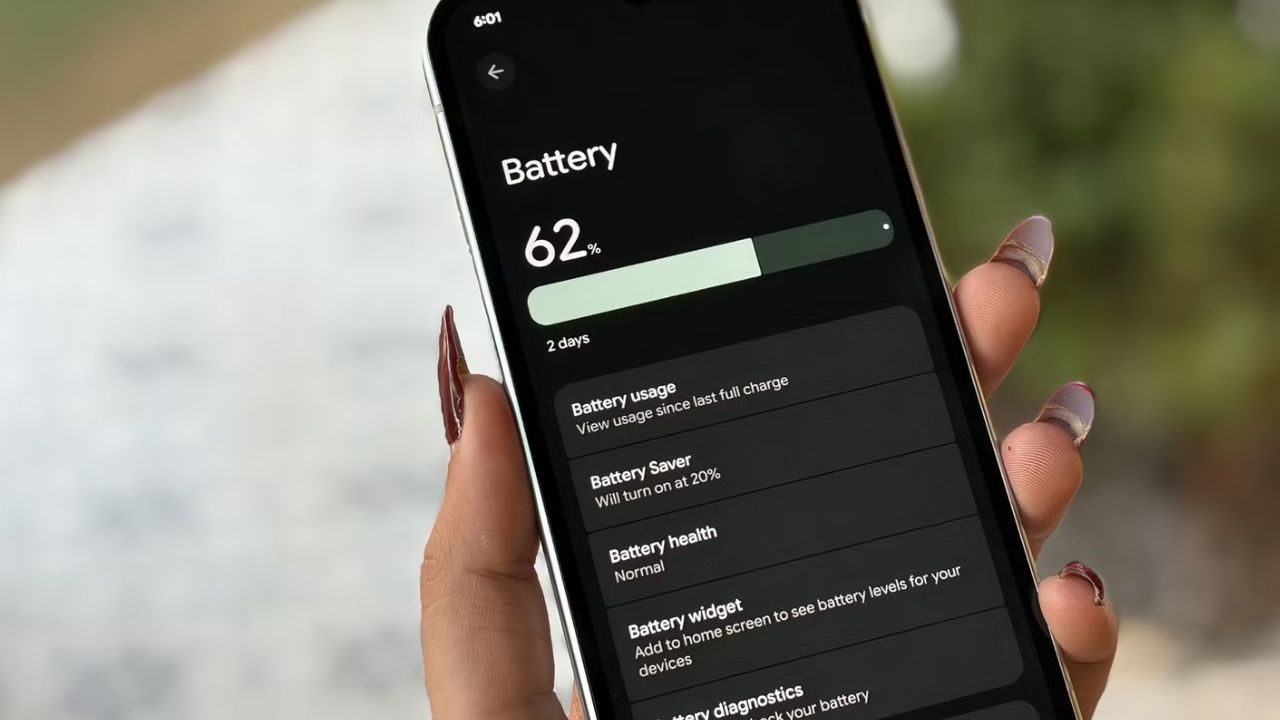
You can extend your Android phone’s battery life by adjusting the display refresh rate. This setting controls how many times your screen image updates per second, and changing it can significantly impact how long your phone lasts on a single charge. Most flagship Android phones allow you to modify this setting.
Table of Contents
Key Facts
- Lowering the display refresh rate can add up to two hours of battery life.
- The battery life improvement can range from 15% to 25% over a full charge.
- Most budget and mid-range phones are fixed at 60Hz.
- Flagship phones often offer options for 60Hz, 90Hz, or 120Hz.
- Adaptive refresh rate technology can dynamically adjust the rate to save power.
What is Display Refresh Rate?
Your phone’s refresh rate is basically how many times the display updates its image every second. This is measured in Hertz (Hz). A higher number means the screen refreshes more often, creating a smoother visual experience.
For example, a 60Hz display updates 60 times per second. A 120Hz display updates 120 times per second. When you use a 120Hz setting, the display has to work twice as hard as it would at 60Hz.
Most budget and midrange phones only have a 60Hz display, so you do not have a choice in this matter. On these devices, the refresh rate is fixed.
How Changing Refresh Rate Affects Battery Life
I recently dropped my phone’s display refresh rate from 120Hz to 60Hz and gained approximately two extra hours of battery life. This change directly impacts how much power your screen consumes.
Depending on your specific phone model, the difference in battery life can be anywhere from 15% to 25% over a full charge. This is a substantial improvement for devices that struggle to last a full day.
Flagship phones often provide the option to choose between 60Hz and 120Hz. This allows you to prioritize either smoother visuals or extended battery life. Some phones even offer a 90Hz middle ground, providing a balance between the two.
Adjusting Your Android’s Refresh Rate
The most obvious downside to a lower refresh rate is that 60Hz looks less smooth than 120Hz. Whether you notice this difference depends on several factors. These include how long you have been using 120Hz, your current activity on the phone, and your individual eyesight.
For instance, if you are gaming, the difference between 60Hz and 120Hz is very noticeable. However, if you are mostly typing messages or watching short videos, the effect is much less apparent. You have to decide what matters more to you.
The adjustment period from 120Hz to 60Hz is typically quite short. Your brain can adapt quickly, especially if you are not actively seeking out the difference. Most everyday activities like watching videos, browsing social media, messaging, and reading emails do not significantly benefit from 120Hz.
You will primarily notice the difference in fast user interface interactions. This includes quick swipes, switching between apps, rapidly scrolling through long pages, and gaming. You need to choose what is more important for your usage.
Adaptive Refresh Rate Technology
Some phones feature adaptive refresh rate technology, such as LTPO display technology. Devices like the Pixel 10 Pro use this system. It allows the phone to adjust the refresh rate dynamically based on the content displayed on your screen.
Google refers to this as Smooth Display. When you are actively scrolling through a feed or gaming, the display ramps up to 120Hz for a fluid experience. However, when you are reading a static page or the screen is idle, the refresh rate drops significantly.
For example, the refresh rate can drop all the way down to 1Hz. This technology provides the best of both worlds, offering smooth visuals when needed and conserving battery when the display is less active. This is why the Pixel 10 Pro defaults to 120Hz.
Other Display Settings That Impact Battery Life
Beyond refresh rate, screen brightness is a major factor in battery consumption. While auto-brightness is intended to help, it can learn your habits. If you frequently manually increase brightness, auto-brightness may start doing the same.
Consider training your phone’s auto-brightness to a lower default if you want to conserve power. For phones with OLED or AMOLED displays, enabling dark mode can also reduce battery drain. Dark mode turns off pixels that display black, consuming less power.
Screen timeout is another setting you can adjust. If your phone is set to lock after 1 minute of inactivity, reducing it to 30 seconds can make a noticeable difference in battery longevity. This limits the time the screen stays on when not in use.
Steps to Change Your Android Refresh Rate
Follow these steps to adjust your Android phone’s display refresh rate. Note that the exact menu names and locations may vary slightly depending on your phone’s manufacturer and Android version.
- Open your phone’s Settings app.
- Scroll down and tap on Display.
- Look for an option named Motion Smoothness, Refresh Rate, or similar.
- Tap on this option to see available settings, which may include Adaptive, Standard (60Hz), or High (90Hz or 120Hz).
- Select your desired refresh rate. For maximum battery life, choose the lowest available option (e.g., 60Hz). For the smoothest experience, choose the highest.
Frequently Asked Questions
Do all Android phones allow changing the refresh rate?
No, not all Android phones allow you to change the refresh rate. Most budget and mid-range devices have a fixed 60Hz display. Only flagship phones typically offer the option to adjust this setting.
Is a 120Hz display bad for battery life?
A 120Hz display uses more power than a 60Hz display because it refreshes twice as often. This can lead to a noticeable decrease in battery life, potentially reducing usage time by 15% to 25%.
What is adaptive refresh rate?
Adaptive refresh rate technology, like LTPO, allows your phone to automatically adjust the display’s refresh rate based on what is shown on the screen. It ramps up for smooth motion and drops to conserve power when the display is static.
How long does it take to get used to 60Hz after 120Hz?
The adjustment period from 120Hz to 60Hz is generally quite short. Most users find their eyes adapt within a few minutes to an hour, especially if they are not actively looking for the difference during everyday tasks.
What happens if I cannot find the refresh rate setting?
If you cannot find the refresh rate setting, your phone likely does not support this feature. This is common on budget and mid-range Android phones, which are manufactured with a fixed 60Hz display.
