

Home Assistant: Automate Laptop Charging for $10 to Preserve Battery

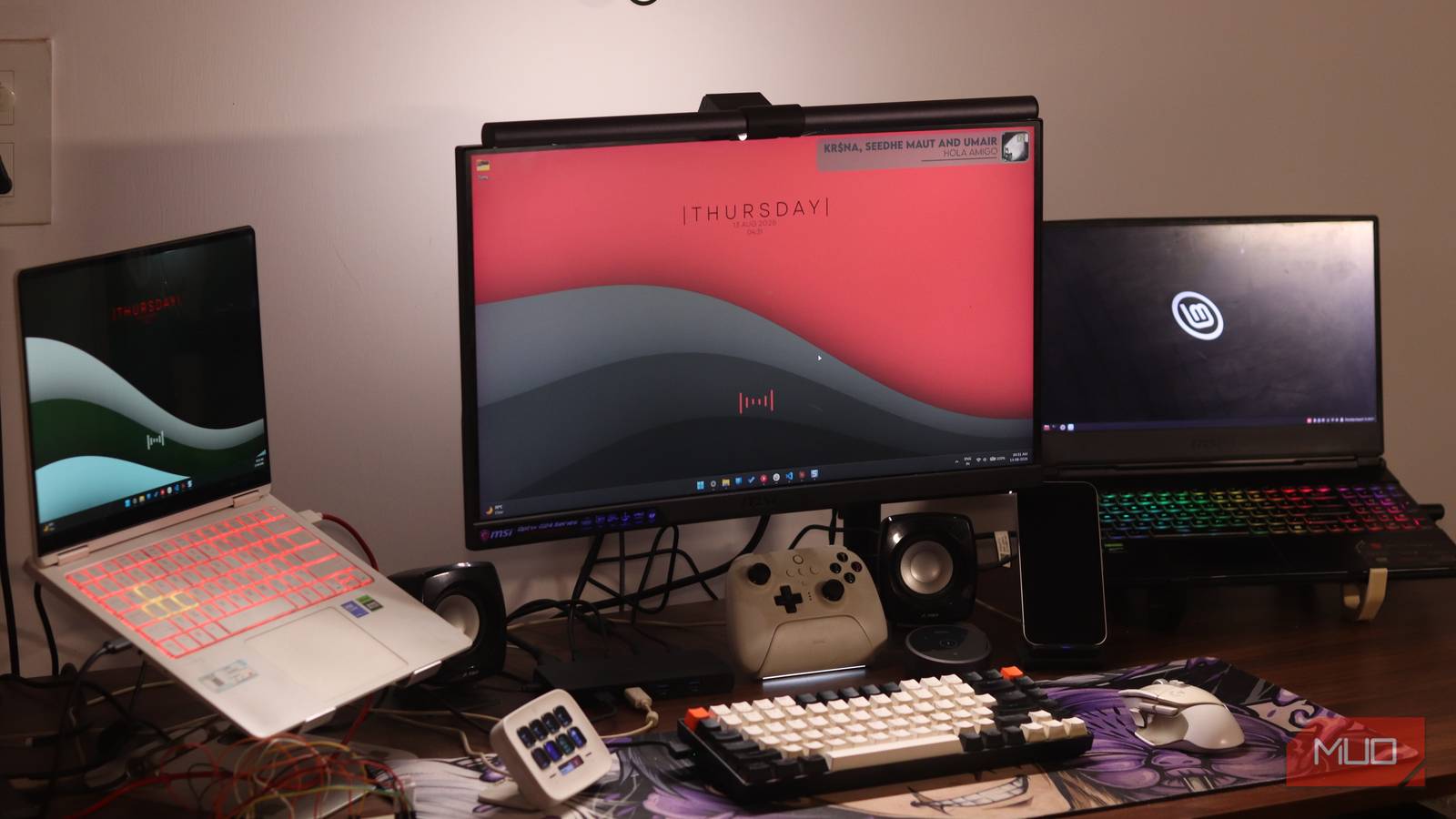
You can extend the lifespan of your laptop’s battery by using a smart plug and Home Assistant automations to manage its charging. This method requires a smart plug compatible with Home Assistant and a system running Home Assistant. This setup helps prevent the battery from constantly staying at a full charge.
Table of Contents
Why you should care about laptop battery health
Lithium-ion batteries degrade faster when kept at very high or very low charge levels. The ideal range for longevity is generally between 20 and 80 percent. Leaving a laptop plugged in at 100 percent continuously elevates cell voltage.
This elevated voltage accelerates the breakdown of battery electrolytes. Consequently, this shortens the number of usable charge cycles the battery can handle before its capacity noticeably diminishes. Windows laptops typically offer between 300 and 500 cycles before capacity drops to 80 percent.
Constant trickle charging at full voltage is a quick way to deplete these cycles. While the battery serves as a built-in backup, there’s no benefit to keeping it constantly at 100 percent. Managing the charge level is key to preserving its health.
Setting up the smart plug and Home Assistant
You can solve problems with non-Wi-Fi appliances, like a laptop charger, using smart plugs and Home Assistant automations. The author uses a $10 TP-Link P110 smart plug, chosen for its affordability and availability. This plug also features energy monitoring capabilities.
The TP-Link P110 works well with Home Assistant. It reports real-time power draw and tracks daily and monthly energy consumption. It can even estimate the electricity cost for the connected device, offering more utility than initially expected.
Newer P110 firmware includes a “Smart Charge Guard” feature. This automatically cuts power when a device is estimated to be fully charged, aiming to reduce battery wear. However, the author desired more precise control than this opaque estimated cutoff.
Automating your laptop’s charging with Home Assistant
Home Assistant automations offer more power than the TP-Link app alone. You can also monitor your laptop’s battery status directly within Home Assistant. This allows for granular control over charging schedules tailored to battery health.
To integrate the P110 into Home Assistant, use the official TP-Link Smart Home integration. This natively supports the P110, exposing its switch and power sensor entities. Ensure third-party compatibility is enabled in the Tapo app first for local authentication.
Firmware updates can sometimes disrupt local API access. Toggling third-party compatibility off and back on often resolves connectivity issues. A significant firmware change might require a library update.
Once entities appear in Home Assistant, the automation logic is straightforward. A basic automation can turn the smart plug on when the battery drops below 50 percent and off when it reaches 80 percent.
Monitoring your laptop’s power usage
The energy monitoring feature of the P110 is a valuable tool. Home Assistant graphs the plug’s real-time wattage and daily energy totals. This allows you to observe the charging curve as the battery nears its cutoff and confirm power is being cut.
You can set up notifications to alert you if the plug reports zero watts for an extended period when charging is expected. This usually indicates a dropped connection with the integration, not an issue with the laptop itself.
This monitoring helps ensure the smart plug remains connected to Home Assistant. It provides peace of mind that the charging automation is functioning as intended. It’s a simple check that confirms the system’s operational status.
For the price of a single smart plug, you can manage your server’s charging more effectively. This transforms it from a laptop tethered to an outlet into a better-managed, battery-backed appliance. You retain the benefit of the laptop’s battery backup while keeping the battery in optimal condition.
While mapping your old laptop’s power draw won’t save significant money or notably impact your electricity bill, it provides a useful statistic. This small project adds years to hardware that you might not have otherwise planned to replace.
Frequently Asked Questions
What is the optimal battery charge range for longevity?
The sweet spot for lithium-ion battery longevity is generally between 20 and 80 percent charge. Keeping the battery within this range minimizes stress and slows down degradation.
How does leaving a laptop plugged in affect its battery?
Leaving a laptop plugged in at 100 percent all day keeps the cell voltage elevated. This accelerates electrolyte breakdown and reduces the battery’s lifespan by shortening its usable charge cycles.
What hardware is needed for this automation?
You will need a smart plug, such as the TP-Link P110, which costs around $10, and a Home Assistant instance to manage the automations.
Can I monitor my laptop’s power usage with this setup?
Yes, the TP-Link P110 smart plug provides energy monitoring. Home Assistant can graph real-time wattage and daily energy totals, allowing you to see charging patterns.
What happens if the smart plug loses connection to Home Assistant?
If the plug reports zero watts for too long while charging is expected, it usually means the integration has lost connection. You can set up notifications to alert you to these issues.
