


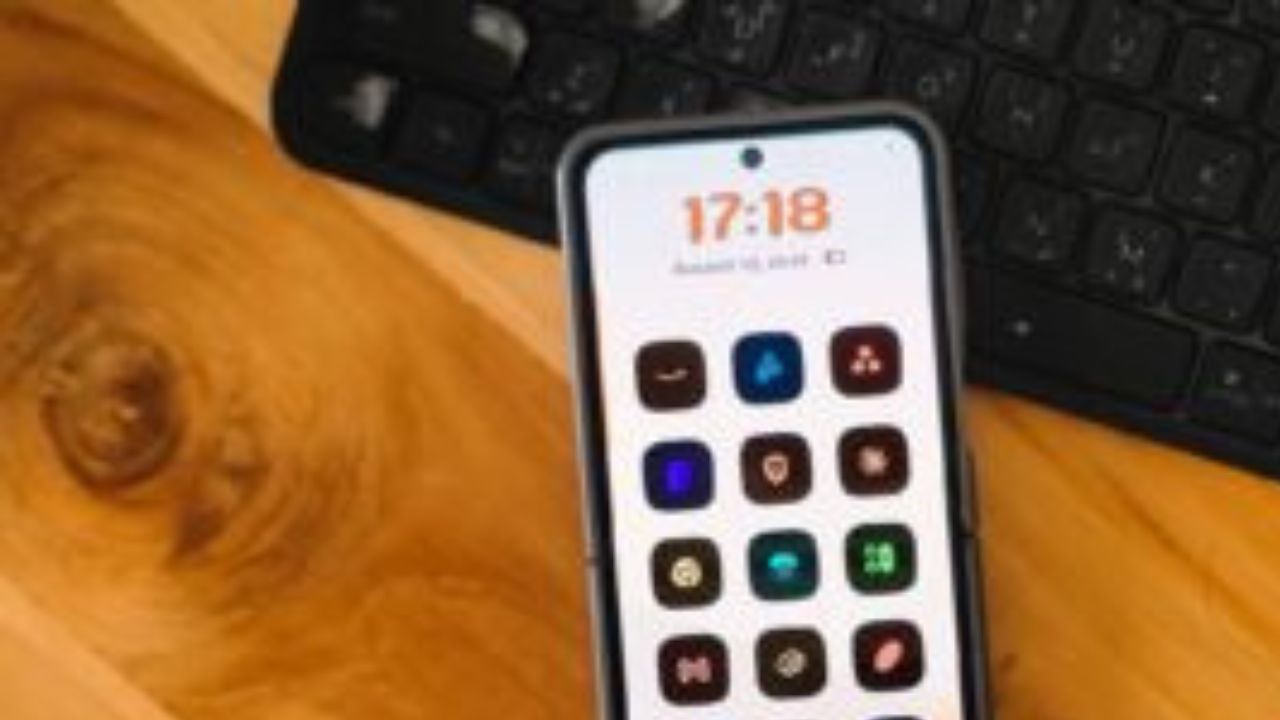
You can transform your Android home screen from boring to dynamic with Mango Launcher. This launcher replaces your standard grid of icons with interactive elements and offers deep customization options.
Table of Contents
What is Mango Launcher?
Mango Launcher is an Android application designed to refresh your home screen experience. It moves away from the static icon grid, offering a physics-based home screen layout where apps move and react to your device’s motion. This creates a dynamic and engaging interface.
Key features include the unique physics layout, where icons tumble and scatter as you tilt or rotate your phone.
This makes the home screen feel alive and also makes icons easier to reach one-handed as they settle toward the bottom. Beyond the physics mode, Mango Launcher provides alternative layouts such as list, grid, mosaic, and a gesture-based “Pie” layout.
The customization extends to fonts, colors, sizes, and spacing for individual elements. It supports icon packs and can theme apps that do not natively offer adaptive icons. The free version includes pre-made themes, frosted glass effects, accent colors, and font selections, allowing significant personalization without additional cost.
Mango Launcher Free vs. Pro
Mango Launcher offers a generous free version that covers essential customization and aesthetic features. However, the Pro tier unlocks additional functionalities aimed at power users who spend more time tweaking their setup.
The Pro version is available for $6.99 per year or a $24.99 lifetime license. It builds upon all features included in the free tier. One of the standout Pro features is “scribble,” which allows you to draw a symbol on your screen to launch an app, website, or trigger a device action.
Additionally, Pro users gain access to widget support, custom and community-made themes, auto-changing wallpapers, and advanced custom gestures, including split-screen actions.
Voice commands for app launching and digital wellbeing tools are also part of the Pro package. The necessity of the Pro version depends on your desire for extensive customization and specific features like widgets and advanced gestures.
Getting Started with Mango Launcher
To begin using Mango Launcher, you first need to install it from the Google Play Store. Once installed, you can access its settings by long-pressing on your home screen and then selecting “Mango Settings.”
Within Mango Settings, you can customize various aspects of your home screen. This includes adding or removing favorite apps that will be displayed on your home screen. You can also adjust layout options, themes, icon styles, and other visual elements to personalize your device.
The launcher supports features like notification badges, which display unread counts on app icons, helping you keep track of alerts without opening each app. While some app icons might appear as generic shapes if they lack adaptive icons, you can manually select an icon shape from an installed icon pack to resolve this.
Mango Launcher Performance and Customization
Mango Launcher provides a smooth user experience with fluid animations and quick app loading times. The launcher operates efficiently, ensuring it does not impede your device’s performance. While not as visually polished as some other launchers, it is highly functional and continually improves with updates.
The app drawer offers a powerful search function, allowing you to quickly find and open apps. A one-handed alphabet scrubber facilitates rapid navigation through your app list. For organization, Mango Launcher includes a folder system that allows you to group apps, widgets, and shortcuts into a single folder, helping to keep your home screen tidy.
Further customization options include the ability to modify fonts, colors, sizes, and spacing for various on-screen elements.
You can choose accent colors from your wallpaper or manually select them, and position the home screen elements at the top or bottom of the screen. While global font settings are not yet available, individual text sections can be customized.
Key Features of Mango Launcher
- Physics-based home screen: Apps react to device movement, creating a dynamic interface.
- Multiple Layout Options: Beyond physics, choose from list, grid, mosaic, or gesture-based Pie layouts.
- Deep Customization: Adjust fonts, colors, sizes, icon packs, and use frosted glass effects.
- Free Version Features: Includes themes, icon packs, folders, and notification badges.
- Pro Version Features: Adds widget support, custom themes, scribble gestures, and voice commands.
Frequently Asked Questions
What are the costs associated with Mango Launcher?
Mango Launcher offers a free version with substantial features. The Pro version, which adds advanced functionalities like widget support and gesture controls, costs $6.99 per year or $24.99 for a lifetime license.
Does Mango Launcher support widgets?
Widget support is available in the Pro version of Mango Launcher. The free version does not include this functionality, but the Pro tier allows for flexible widget placement and resizing.
Can I use my own icon packs with Mango Launcher?
Yes, Mango Launcher supports third-party icon packs. You can also customize icon shapes and colors, and the launcher automatically applies themes to apps that do not natively support adaptive icons.
Is Mango Launcher suitable for older Android versions?
The provided information does not specify the minimum Android version required for Mango Launcher. Typically, launchers are compatible with most recent Android versions, but checking the app’s listing on the Google Play Store is recommended for specific version compatibility.
What should I do if an app icon doesn’t display correctly?
If an app icon appears as a generic shape, it is likely because the app developer has not included an adaptive icon. You can fix this by manually selecting an icon shape from an installed icon pack within Mango Launcher’s settings.
