


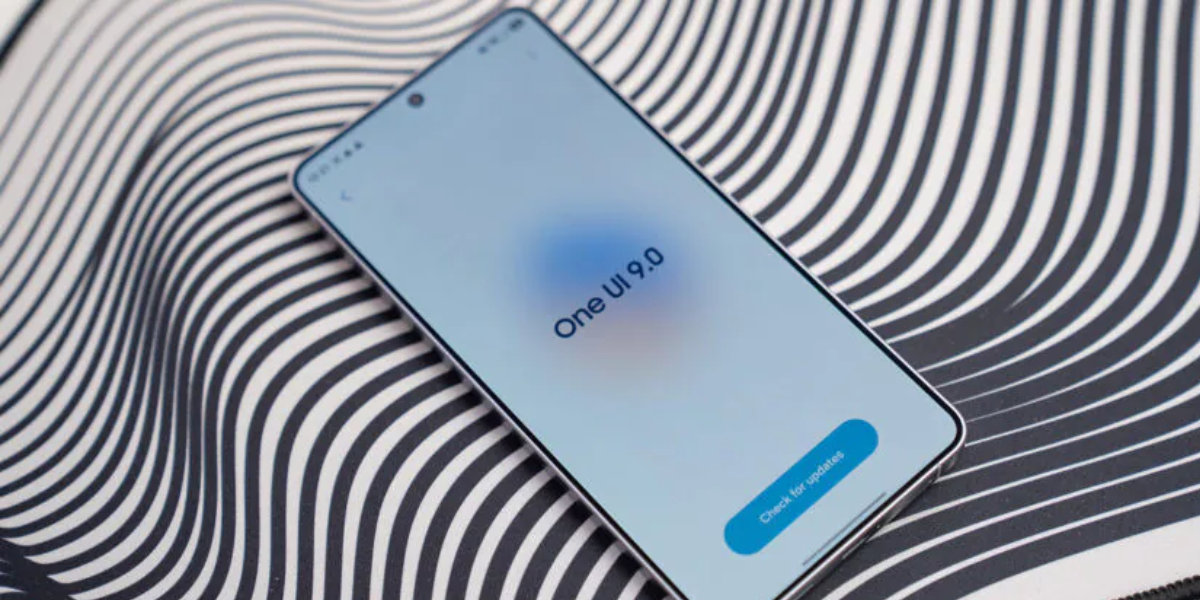
Samsung has quietly delivered one of the most requested Galaxy features ever — a live network speed meter right in the status bar — and all it takes is a few taps inside the QuickStar Good Lock module. Below you’ll find exactly what the indicator shows, how to turn it on, and which phones can use it right now. The feature shipped in QuickStar version 11.0.03.15 and is currently limited to the Galaxy S26 series on the One UI 9 beta.
Table of Contents
What Is the One UI 9 Network Speed Indicator?
Samsung’s One UI 9 update adds a native network speed indicator to the Galaxy status bar through an updated QuickStar Good Lock module. The feature displays real-time download and upload throughput for both Wi-Fi and mobile data connections, appearing on the right side of the status bar. It is disabled by default even on supported devices.
What the Indicator Actually Displays
Once active, the indicator shows live download and upload speeds that auto-scale between KB/s, MB/s, and GB/s depending on current throughput. That auto-scaling matters: a static unit would either clip at high speeds or become unreadable at low ones.
The practical use case is straightforward. Knowing whether a stalled download or a stuttering video stream is a connection problem or an app problem usually requires opening a separate speed test. The status bar readout answers that question at a glance.
What It Does NOT Show
The indicator does not display latency, signal strength, or connection stability. Throughput and network quality are related but distinct measures — a connection can move data quickly while still being inconsistent. That’s a reasonable scope for a status bar element, but worth understanding so the readout doesn’t get misread as a full signal health report.
How to Enable the Network Speed Indicator in QuickStar
The path is short but not entirely intuitive. Samsung buried the toggle inside the QuickStar plugin, which itself lives inside the Good Lock app — a chain that requires all three pieces to be in place before the option appears.
Prerequisites: One UI 9, Good Lock, and QuickStar
Before anything else, confirm that One UI 9 is installed on your device. Next, download Samsung’s Good Lock app from the Galaxy Store. Inside Good Lock, install the QuickStar plugin — the feature specifically requires version 11.0.03.15 or later.
Without all three components, the network speed toggle will not appear.
Step-by-Step Activation Guide
With the prerequisites in place, open the Good Lock app and launch the QuickStar plugin. Navigate to the “Indicator Icons” section and toggle on “Network speed.” The indicator is disabled by default, and once switched on, it joins the right-side cluster of status bar icons. No reboot is required — the readout appears immediately.
Device Availability and Rollout Status
This is where the excitement meets a hard reality check. The network speed indicator is not yet available to the vast majority of Galaxy owners, and Samsung has not published a firm timeline for broader access.
Currently Supported Devices
Access is currently limited to Galaxy S26 series devices enrolled in the One UI 9 beta program. That’s a narrow slice of the install base, but it’s the first confirmed look at a status bar feature Galaxy users have been requesting for years.
Will Older Galaxy Phones Get It?
Samsung has not announced a rollout timeline for older flagships such as the S25 or S24 series. Historically, Good Lock features expand to older Galaxy devices once the stable version of a new One UI build reaches them. Samsung is expected to announce a rollout for older Galaxy flagships, but no date has been confirmed.
Other Changes in the QuickStar Update
The network speed indicator isn’t the only customization addition in this QuickStar release. The same update ships a bonus toggle that addresses another common status bar complaint.
New Now Bar Disable Toggle
QuickStar v11.0.03.15 adds a new option to disable the Now Bar (also called the Ongoing Chip), which controls live activity chips for timers, incoming and ongoing calls, voice recordings, and similar background tasks. Disabling it turns off these persistent notifications for users who find them distracting. It’s a small but meaningful quality-of-life addition that shipped alongside the network speed feature.
Background: Good Lock and QuickStar
For readers just catching up, the network speed indicator sits at the intersection of two Samsung software layers that not every Galaxy owner interacts with regularly.
What Is Good Lock and QuickStar?
Good Lock is Samsung’s official customization suite, available through the Galaxy Store, that lets users modify system-level UI elements without root access. QuickStar is one of its plugins, specifically focused on status bar icon management — controlling which indicators appear, how they behave, and where they sit. Think of Good Lock as the app store and QuickStar as the individual tool that handles the status bar.
Why This Feature Took So Long
Android users have had third-party network speed apps for years, but Samsung never offered a native throughput meter in the status bar — a gap that stood out as most competing Android skins included one out of the box. One UI 9 marks the first time Samsung has built this capability directly into the OS, even if it arrived through the Good Lock pipeline rather than as a default system setting.
What to Expect Going Forward
As One UI 9 moves from beta to stable, the network speed indicator will almost certainly expand to more Galaxy devices. Samsung typically widens Good Lock feature access as stable builds reach older flagships, so owners of the S25, S24, and other recent models have reason to be patient.
Samsung may also refine the feature based on beta feedback. Potential additions could include latency display or per-app throughput breakdowns, though nothing has been confirmed. For now, the indicator does exactly what it promises — shows live speed in the status bar — and that alone fills a gap Galaxy users have lived with for years.
Frequently Asked Questions
Do I need Good Lock and QuickStar installed to use the network speed indicator?
Yes. The feature requires One UI 9, the Good Lock app from the Galaxy Store, and the QuickStar plugin (version 11.0.03.15 or later). All three must be installed before the toggle appears.
Which Samsung Galaxy phones currently support the One UI 9 network speed status bar feature?
Access is currently limited to the Galaxy S26 series on the One UI 9 beta program. No other devices are confirmed at this time.
Does the network speed indicator show signal strength or ping/latency?
No. The indicator displays throughput only — live download and upload speeds. It does not show latency, signal strength, or connection stability.
Will the network speed indicator come to older Galaxy phones like the S25 or S24?
Samsung has not announced a timeline. Historically, Good Lock features expand to older flagships as stable One UI updates roll out, so broader availability is likely but not yet confirmed.
Can I customize where the network speed indicator appears in the status bar?
The indicator appears on the right side of the status bar and there is no confirmed option to reposition it. QuickStar controls whether it is on or off, but placement customization has not been detailed.
